
Yes, HubSpot has a business card scanner: the free HubSpot mobile app includes one, and it writes contacts straight into your CRM. There is also a second route, where ConnectMachine scans the card and a Zap creates the HubSpot contact, and it is the better fit whenever the card has to reach more than one place.
This guide covers both, so you can pick before you build anything. It also covers what the Zapier template does not do: there is no search step on the ConnectMachine side, so the Zap writes without checking first, and a setup guide that oversells the automation costs you more time than it saves.
The short answer
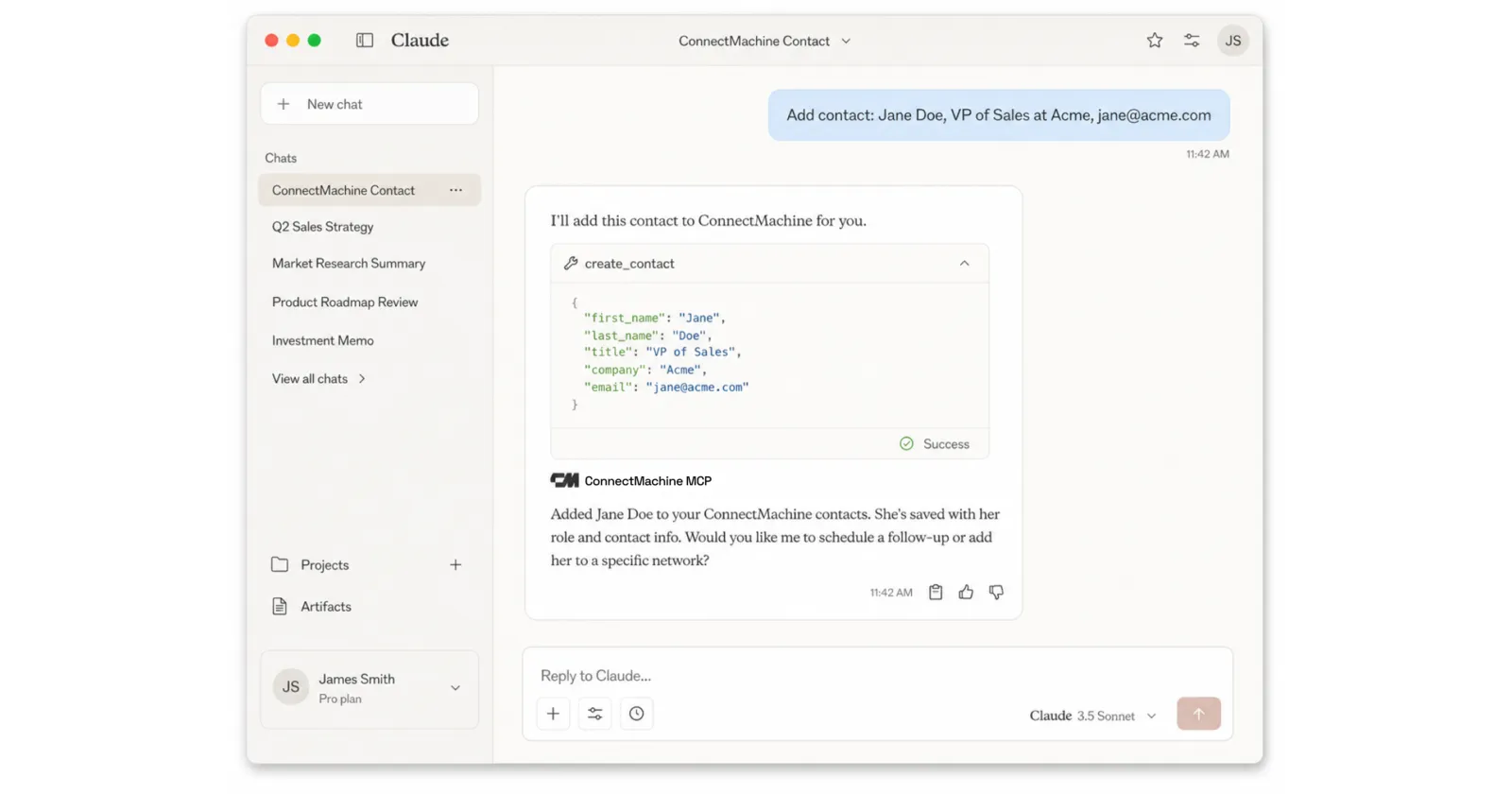
Open the public Create HubSpot contacts from new ConnectMachine contacts template on Zapier, connect both accounts, check the field mapping, run one test, and turn the Zap on. From that point, every contact added in ConnectMachine, including the ones you create by scanning a card, is pushed to HubSpot's Create Contact step without you retyping anything.
Two HubSpot-specific things are worth knowing before you build it. The action creates contacts and does not sync them back, so anything your team edits in HubSpot stays in HubSpot. And HubSpot's own deduplication on email is the only duplicate protection in the chain, which matters more than it sounds once cards start carrying personal addresses.
When this route makes sense
HubSpot ships its own free business card scanner in its mobile app, and there is a plain CSV import as well. Three routes, three different jobs.
Use HubSpot's scanner when HubSpot is the only destination
If the card only ever needs to reach HubSpot and only you handle it, scanning inside the HubSpot app is the shortest path. Nothing to connect, nothing to maintain.
Use CSV import for a backlog
A drawer of old cards is a one-off job, not an automation. Read the batch in the browser with the free bulk business card scanner, which handles 10 cards per batch and exports CSV or vCard without an account. HubSpot imports the CSV directly.
Use ConnectMachine plus Zapier when the contact has more than one destination
The scan lands in a network you keep for yourself, with notes and where you met attached, and Zapier fans the same contact out to HubSpot, Slack, a spreadsheet, or an email sequence. That is the case the native scanner cannot cover, because its only output is HubSpot.
The deciding question is usually about timing rather than tooling. HubSpot's scanner assumes the person is already a CRM record; a marketing contact you create today counts against your tier whether or not they ever become a deal. Capturing them outside the CRM first, at an event where you meet sixty people in two days, lets you decide afterwards which of them HubSpot should ever see.
What you need
- Zapier access on your ConnectMachine plan: a paid subscription, a seat on an organization license, or an active Premium trial. The Individual plan is $5/month billed annually ($59.99/year) or $5.99 month-to-month.
- A Zapier account. The free tier includes 100 tasks per month, which covers a light scanning week.
- A HubSpot account with permission to create contacts, and a note of which contact properties your team has made required.
Nothing on this list involves a webhook URL: ConnectMachine ships as a native Zapier app, so the connection is a sign-in rather than a copy-paste. The Zapier documentation holds the prerequisites, the OAuth scopes, and the full field reference. From here on, this guide only talks about HubSpot.
Step by step: ConnectMachine to HubSpot
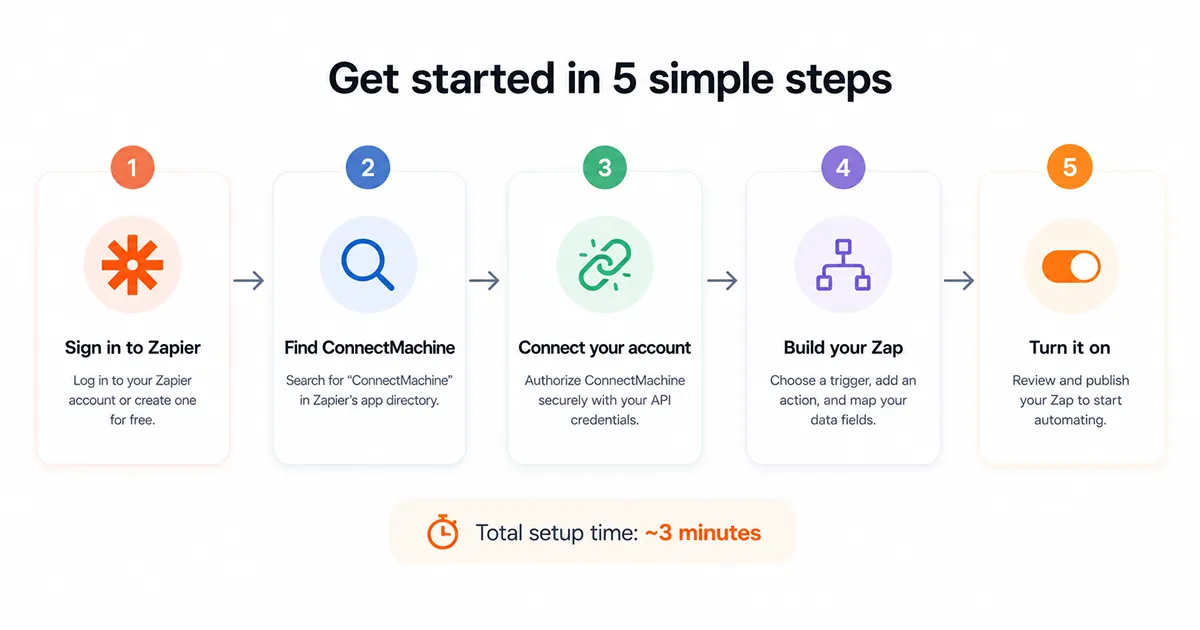
1. Scan one card before you build anything
Zapier builds the mapping against a real record pulled from your account, so an empty ConnectMachine gives you an empty step. Scan a card that carries a company, a job title, and a phone number, and the HubSpot property list stops being theoretical.
2. Open the HubSpot template
Use the Create HubSpot contacts from new ConnectMachine contacts template rather than a blank Zap. It arrives with the New Contact trigger and HubSpot's Create Contact action already wired, so the first thing you touch is the connection rather than the plumbing.
3. Connect both accounts
ConnectMachine signs you in with Google or an emailed code, never a password; HubSpot asks you to pick the account the contacts should land in. Zapier remembers both and reuses them in later Zaps. The consent screen and the scopes behind it are documented in the Zapier docs.
4. Map to HubSpot properties, not to notes
Email is the property to get right, because HubSpot treats it as the identity of a contact record. Then first name, last name, company, job title, phone, and only afterwards the custom properties your pipeline actually reports on.
5. Test on a real scan, then publish
Send one record, open the contact in HubSpot, and read it the way a colleague would. If a required property blocks the write, HubSpot names it in the error. If it reads the way you want, publish the Zap.
Map and test the contact fields
The trigger hands Zapier a structured contact rather than a blob of text, which is what keeps the mapping short. The full field list is in the docs. What matters here is which of those fields HubSpot has somewhere sensible to put, and which ones quietly have nowhere to go.
- Map the primary email into HubSpot's email property, not into a note field. It is the deduplication key, so putting it anywhere else costs you the only duplicate protection you have.
- Send your ConnectMachine notes and the where you met value into a searchable HubSpot property. HubSpot has no native field for the context of a meeting, so it needs a custom property or it lands in a text blob nobody filters on.
- Leave optional HubSpot properties unmapped rather than filling them with placeholder text. Placeholder values are worse than blanks, because they survive every later cleanup.
- Check the required properties your admin has set. A required property with nothing mapped to it is the single most common reason the test step fails.
Test with a real scanned contact rather than Zapier's generic sample. HubSpot is relaxed about most values and strict about email format, so the failure you are looking for is a card carrying something like an address with a trailing comma, which reads fine to a human and not to HubSpot.
Prevent duplicate contacts
Read this part before you turn the Zap on. ConnectMachine's Zapier app publishes no search action, so the usual find-or-create pattern is not available and the Zap writes without checking. In this chain, the only thing standing between a repeat scan and a second HubSpot record is HubSpot itself.
HubSpot deduplicates incoming contacts on email, so scanning someone you already hold usually updates the existing record rather than creating a twin. That protection disappears the moment the email is missing or different, which is exactly what happens when the card carries a personal address and HubSpot holds the work one. Two records, same human, and no error anywhere to tell you.
- Do not expect the Zap to tidy up after itself. Merging duplicate contacts is a HubSpot job, done by hand or by a HubSpot workflow.
- Do not run it without a filter if you also import lists into ConnectMachine, or one import becomes hundreds of HubSpot writes.
- Do not assume a contact updated in HubSpot flows back. It does not.
The practical guard is a Zapier filter between the trigger and the action: continue only when the contact has an email address. If you tag contacts in ConnectMachine, add a second condition so only the tag that means this person belongs in marketing takes the HubSpot path. Both take a minute, and on a HubSpot plan billed by contact count they pay for themselves quickly.
What triggers the Zap
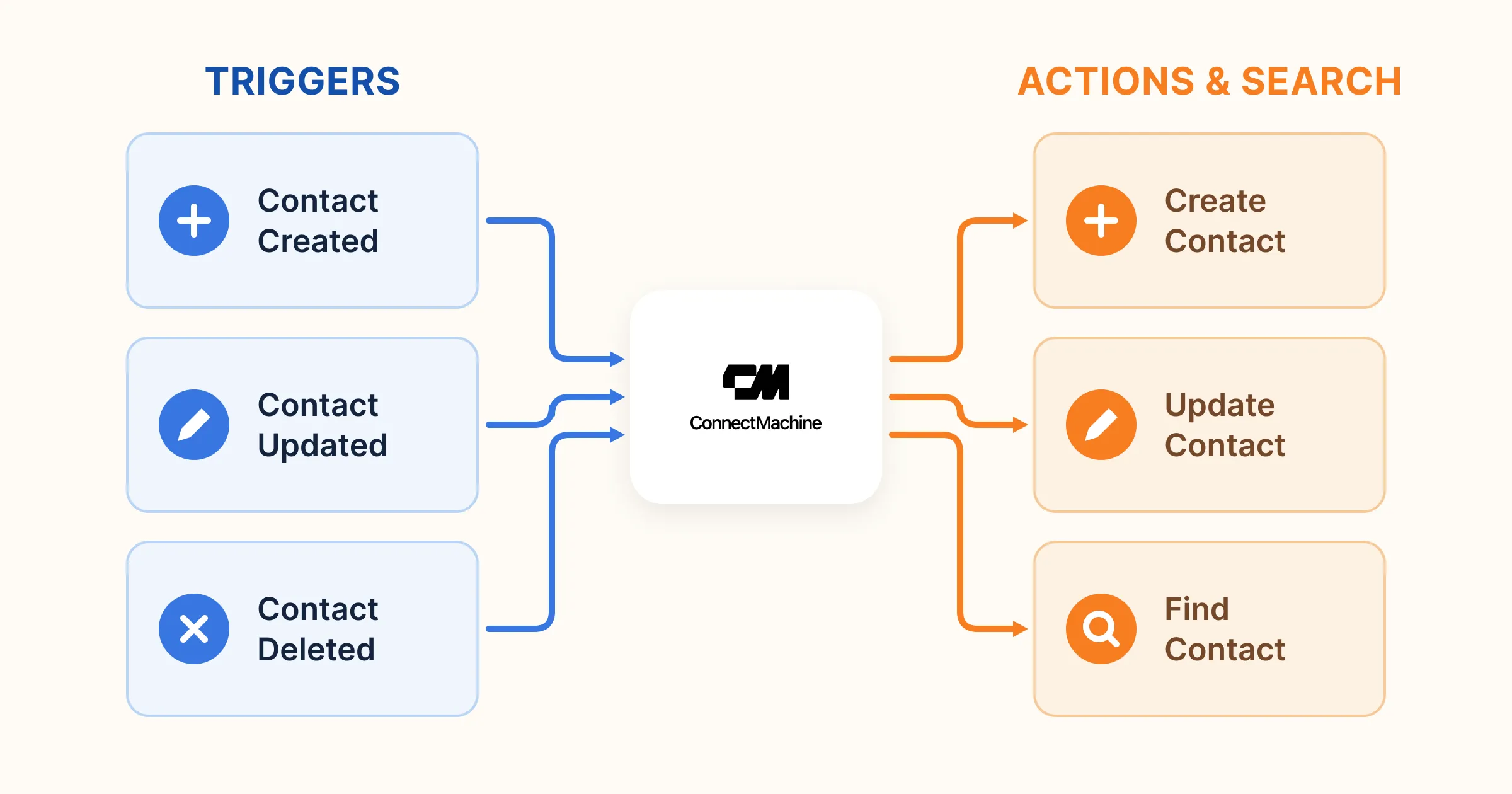
There is no separate scan trigger, which surprises people who expect one. New Contact fires on every contact created in ConnectMachine: a card you scanned, a person you typed in, a row from an import. On a HubSpot plan billed by contact count that distinction is expensive, so the filter is not optional housekeeping.
The docs cover the full set: three triggers, two actions, and the source value that lets you stop two Zaps from feeding each other.
Troubleshooting the HubSpot side
HubSpot rejects the test
Almost always a required property with nothing mapped to it, or an email value HubSpot considers invalid. The error names the property, so map it and re-run.
The contact arrives but the properties are empty
Check that you mapped into HubSpot properties rather than accepting the template's defaults. A property you never touched writes nothing and reports success, which is why the record looks half-finished rather than failed.
The same person appears twice
Compare the email on both records. HubSpot only merges on an exact match, so a personal address on the card and a work address in the CRM produce two contacts, correctly and unhelpfully.
Connection refusals, missing sample data, a 410 Gone on the trigger, and the rest of the ConnectMachine-side failures are covered in the Zapier troubleshooting section.
Other ready-to-use workflows
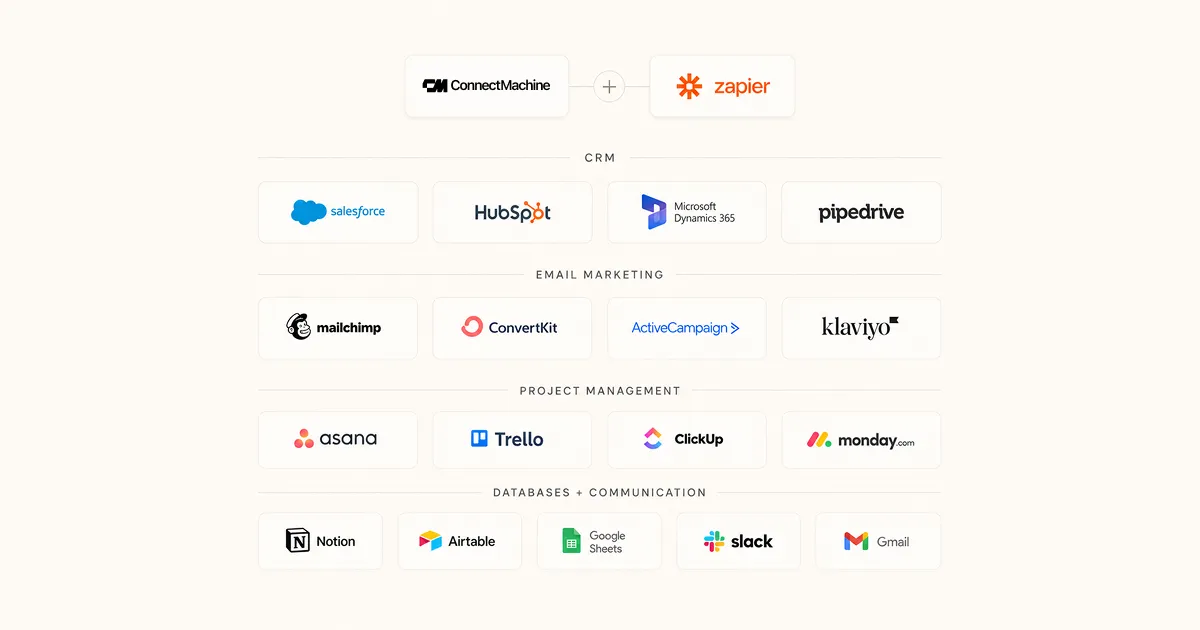
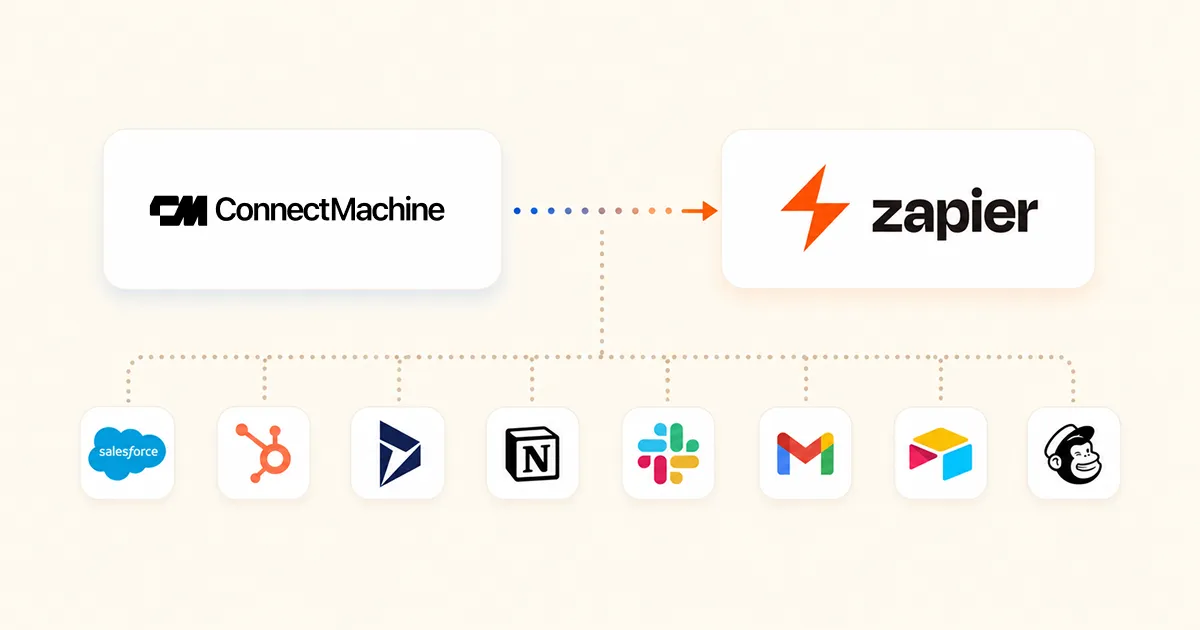
HubSpot is one of several published templates. The same scan can also become a Salesforce lead, a Slack message, a Gmail follow-up, or an Airtable row, all from the one New Contact trigger. Running HubSpot and Slack together is the common pairing: the CRM gets the record, the channel gets the heads-up.
If Salesforce is your CRM instead, the Salesforce business card scanner guide covers that route, and a lead record asks for different fields than a HubSpot contact does. The Zapier integration page lists the current templates with a one-click open for each, including the ones that write into ConnectMachine rather than out of it.
HubSpot's native scanner vs ConnectMachine plus Zapier
Both routes work, and picking on brand loyalty rather than on the job is how people end up with two half-used systems.
Where HubSpot's scanner wins
It is free, it is inside the CRM your team already opens, and there is no automation to maintain. If HubSpot is the single source of truth and everyone at your company works in it, that is the honest answer.
Where ConnectMachine plus Zapier wins
The capture is separate from the CRM. Contacts you are not ready to make leads still get saved with notes, the same scan can reach several tools at once, and the network you build stays yours when you change employers or your team changes CRM.
A reasonable test: if the answer to what happens to a card that is not a lead yet is that it gets thrown away, use HubSpot's scanner. If the answer is that you want to keep the person, keep them in a contact manager and let the Zap decide what HubSpot sees.