
Now on Model Context Protocol
Your network, in every AI tool you use.
Manage contacts, search your network, and update your digital cards directly from Claude, Cursor, VS Code, Zed, and any MCP-compatible AI tool. No new dashboard to learn.
Choose your AI tool
Copy the config for your tool.
Paste it into your tool, replace YOUR_MCP_KEY with your key, and you are connected.
Claude Desktop and web No file needed. Settings, then Connectors, then Add custom connector.
Server URL
https://mcp.connectmachine.ai/mcpClaude Code Add the snippet to your project root.
.mcp.json
{
  "mcpServers": {
    "connectmachine": {
      "url": "https://mcp.connectmachine.ai/mcp",
      "headers": {
        "Authorization": "Bearer YOUR_MCP_KEY"
      }
    }
  }
}Cursor Global config, or per project under .cursor/.
~/.cursor/mcp.json
{
  "mcpServers": {
    "connectmachine": {
      "url": "https://mcp.connectmachine.ai/mcp",
      "headers": {
        "Authorization": "Bearer YOUR_MCP_KEY"
      }
    }
  }
}VS Code Uses a servers object instead of mcpServers.
.vscode/mcp.json
{
  "servers": {
    "connectmachine": {
      "type": "http",
      "url": "https://mcp.connectmachine.ai/mcp",
      "headers": {
        "Authorization": "Bearer YOUR_MCP_KEY"
      }
    }
  }
}Zed Remote MCP servers are supported natively.
Zed settings.json
{
  "context_servers": {
    "connectmachine": {
      "url": "https://mcp.connectmachine.ai/mcp"
    }
  }
}Windsurf and Cody Any client that reads the mcpServers shape.
mcp.json
{
  "mcpServers": {
    "connectmachine": {
      "url": "https://mcp.connectmachine.ai/mcp",
      "headers": {
        "Authorization": "Bearer YOUR_MCP_KEY"
      }
    }
  }
}Other MCP tools Two values are all any MCP client needs: the URL and your key.
Server URL
https://mcp.connectmachine.ai/mcp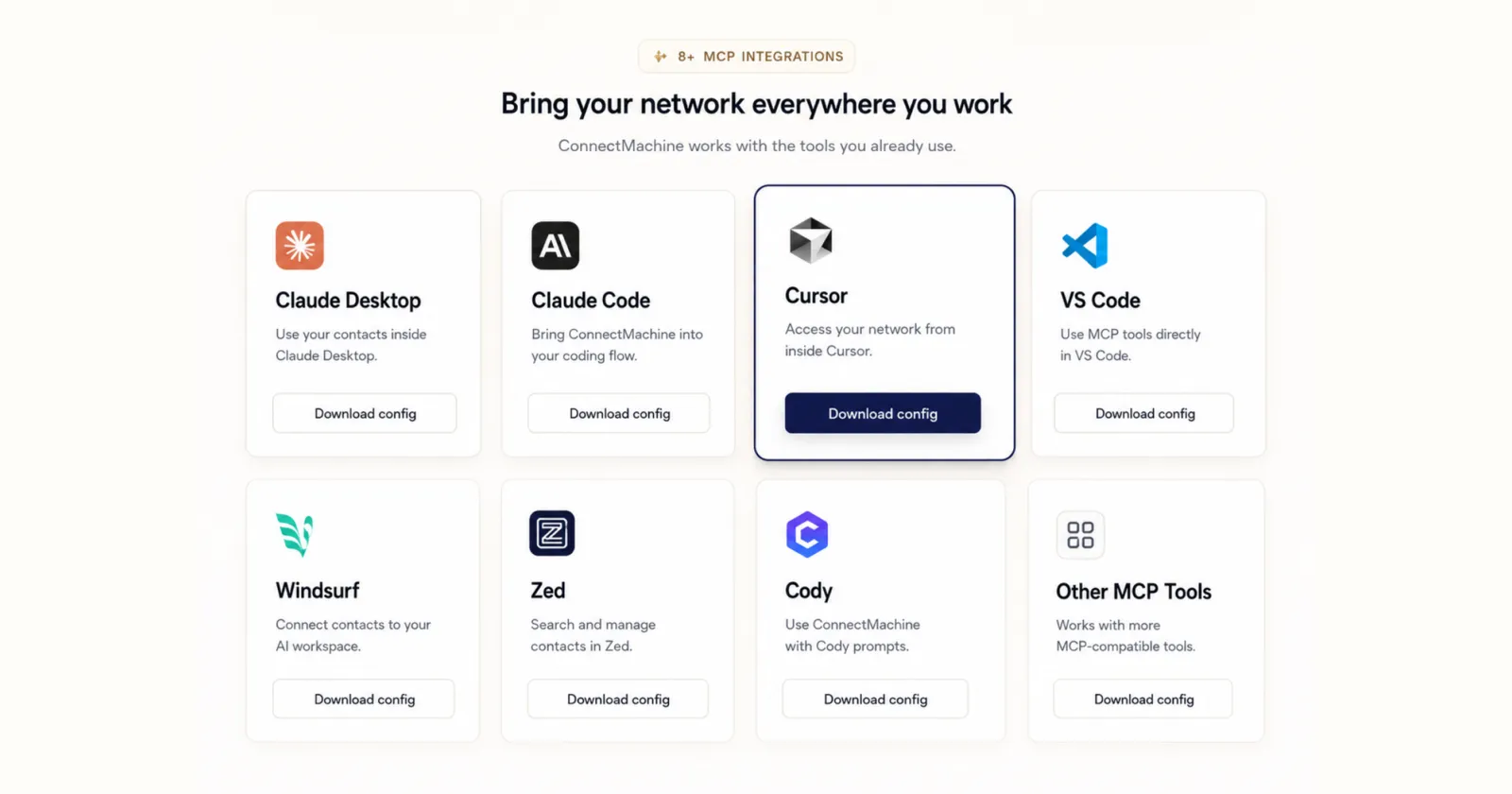
What you can do
Three capability areas.
Say what you mean in your AI tool. It gets done.
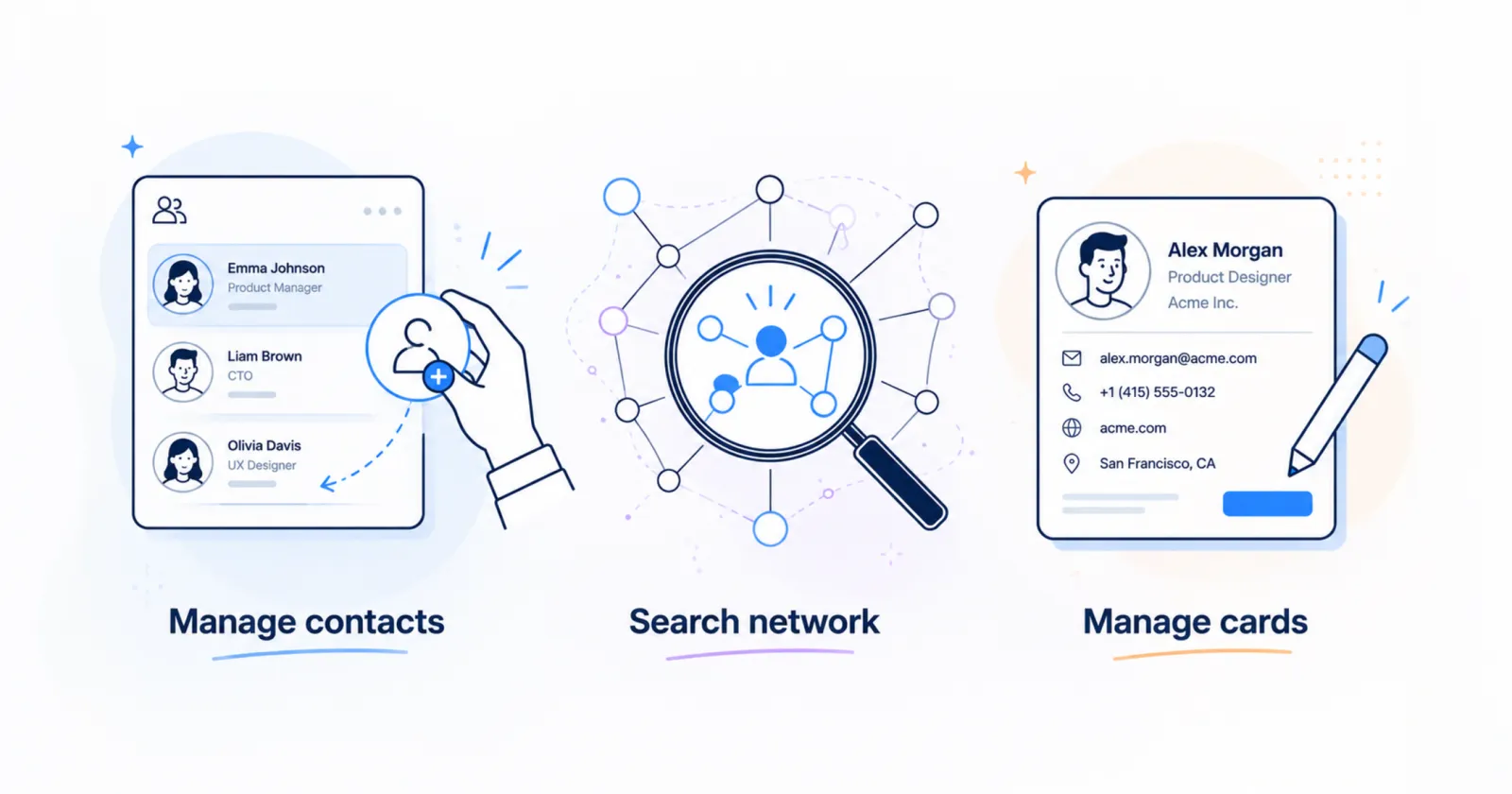
Manage contacts
Add, find, update, and organize people without touching a form.
"Add Jane Doe, VP of Sales at Acme, jane@acme.com."
Search your network
By name, company, job title, email, event, or location.
"Who did I meet at Web Summit?"
Manage your cards
Create and edit cards, update links and socials.
"Add my LinkedIn to my ConnectMachine card."
Setup
Connected in about a minute.
-
Get your MCP key
Sign in on the connect page. Your key authenticates every request and does not expire.
-
Paste the config
Copy the snippet for your tool above and drop it into the file it names.
-
Start asking
Restart the tool if it asks, then try "List my contacts".
Your assistant picks the right ConnectMachine tool for each request. You never call tools by name.
Questions
Common questions
What is MCP?
Model Context Protocol is an open standard from Anthropic that lets AI tools connect to external systems in one standardized way. Support it once and every MCP-compatible tool can talk to you.
Do I need to be a developer?
No. Setup is copy-paste, then you talk to your AI normally. There is nothing to install and no code to write.
Is this a separate cost?
No. Connecting your AI tool is included with ConnectMachine. A few advanced actions, such as CSV export and industry or location filters, follow the same Premium rules as the app.
Is my data safe?
Yes. Your network data stays in ConnectMachine, every call is authenticated with your personal key, and your assistant only receives what is needed to answer the request in front of it.
What if my AI tool is not listed?
Any MCP-compatible client that supports remote HTTP servers can connect with two values: the server URL and your key as a bearer token.
Ready to give your AI access to your network?

- Included with ConnectMachine accounts
- Data stays in ConnectMachine