LinkedIn banner maker for your cover image, with a QR code that saves your contact
Make a LinkedIn banner at the exact size LinkedIn wants, 1584 x 396 pixels. Pick a colour template or your own brand colour, write your headline, and add a QR code anyone looking at your profile can scan to save your details. The same design also comes sized for a Facebook cover, an X header and a YouTube banner.
Free, no watermark, no design skills needed. Ready in about a minute.
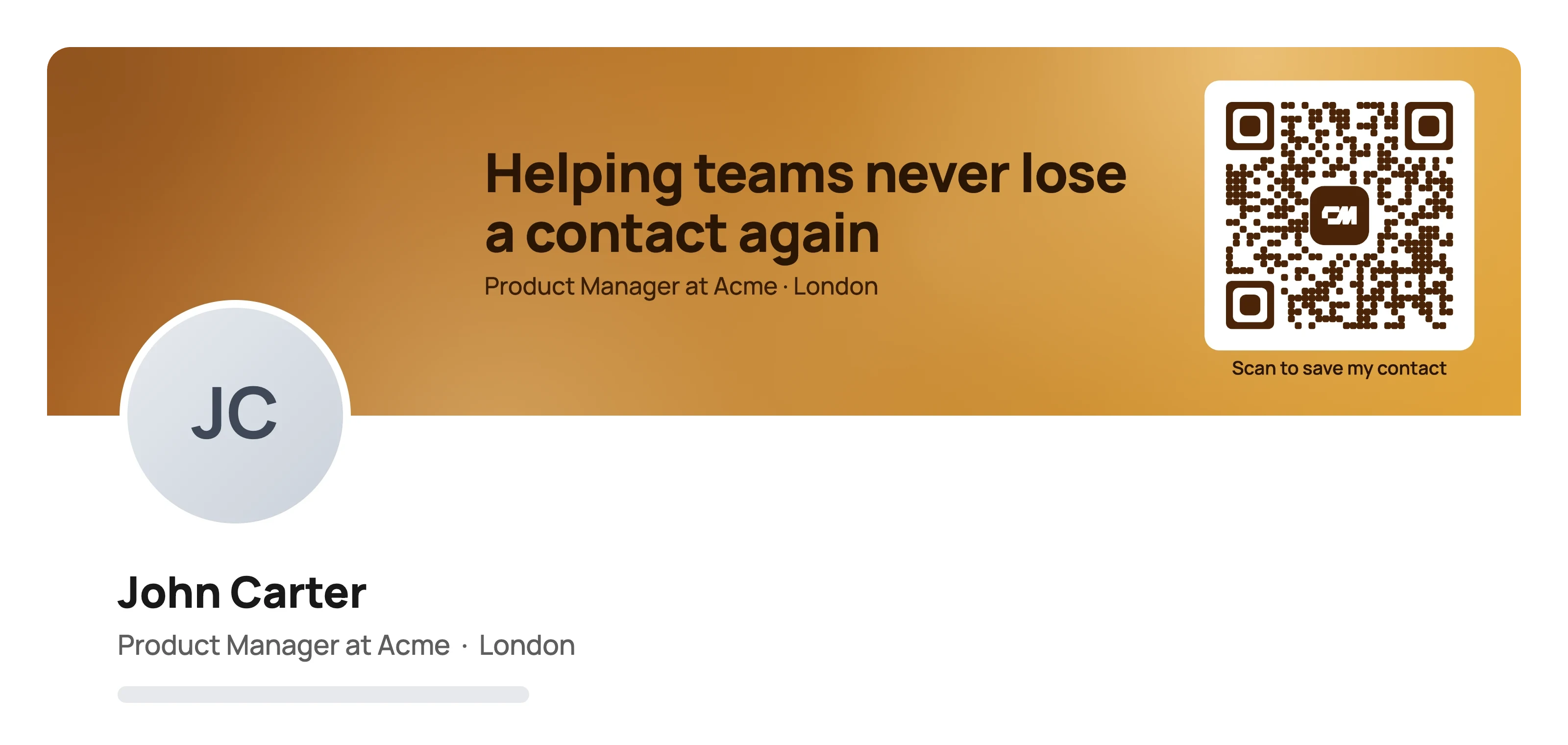
A LinkedIn banner maker is a tool that builds the wide image at the top of your LinkedIn profile, which LinkedIn calls your cover image, at the 1584 x 396 pixel size LinkedIn recommends. This one is free, adds no watermark, and puts a QR code on the banner that opens your contact details.
You write one headline and an optional line of detail, choose from ten colour templates or enter your brand colour, and download a PNG. The layout keeps the lower left clear, because that is where your profile photo covers the banner.
How to make a LinkedIn banner
Three steps, and the banner comes out at LinkedIn's recommended size every time.
- 01
Write your headline. One line that says what you do or what people should contact you about, plus an optional line of subtext. The preview updates as you type.
- 02
Pick your colours and add your QR code. Choose one of ten colour templates and eight textures, or enter your own brand colour, then add your name, email or phone and profile link for the QR code.
- 03
Download and upload. Download the PNG at 1584 x 396 and add it as your LinkedIn cover image, or get the Facebook, X and YouTube sizes in one ZIP.
What is a LinkedIn banner, or cover image?
A LinkedIn banner is the wide image across the top of your profile. LinkedIn calls it your cover image, and people also call it a LinkedIn background banner, cover photo, background photo or header image. They are all the same image. It is the largest visual on the page and the first thing people see after your name and photo.
The default grey banner says nothing. A good one tells visitors in a few words what you do, who you help, or what you want to be contacted about, in colours that match your personal or company brand. It turns a profile visit into a reason to get in touch.
LinkedIn banner ideas and templates by profession
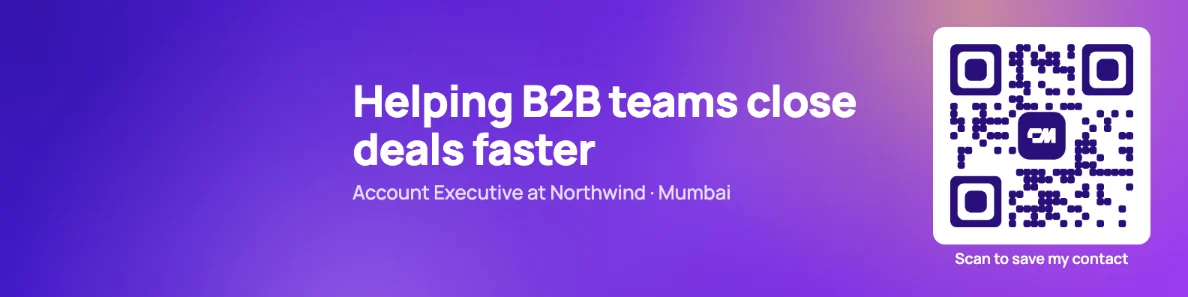
Every example below was made with this LinkedIn banner maker. Open one as a starting template and put your own words on it.
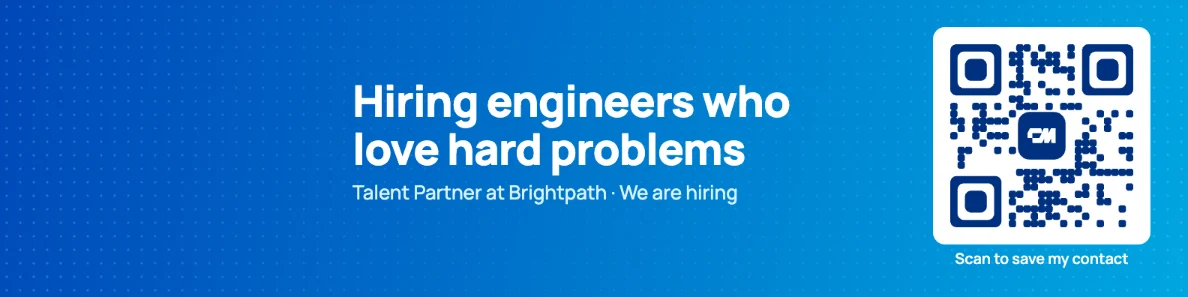
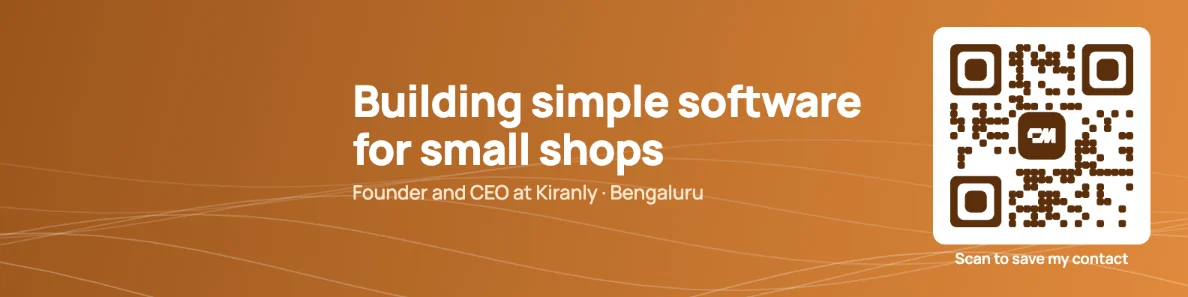
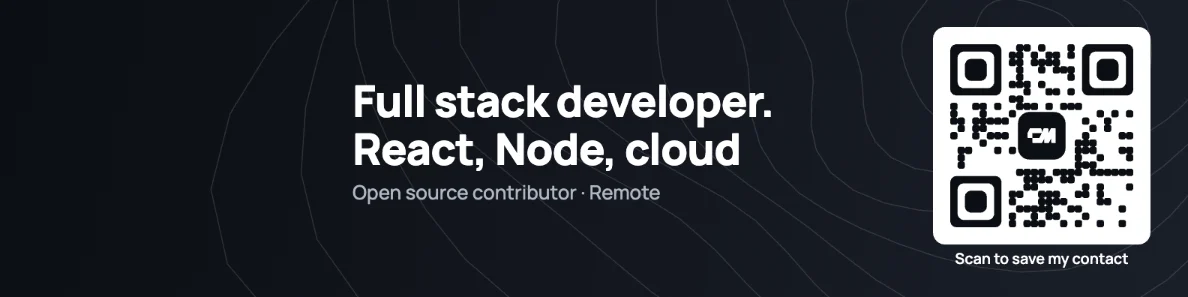
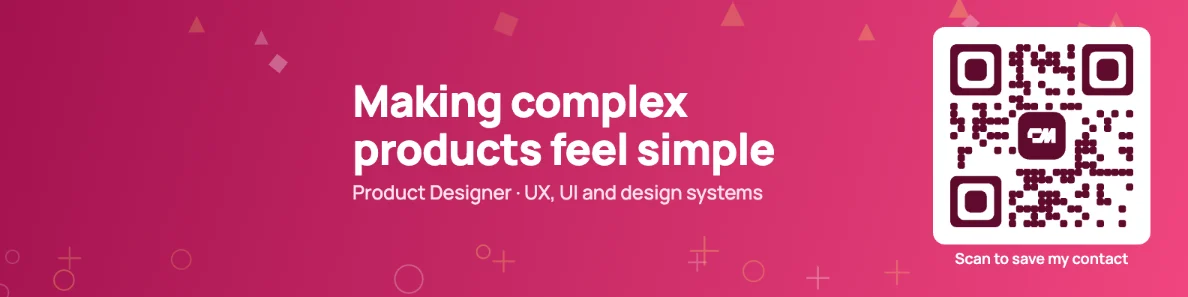
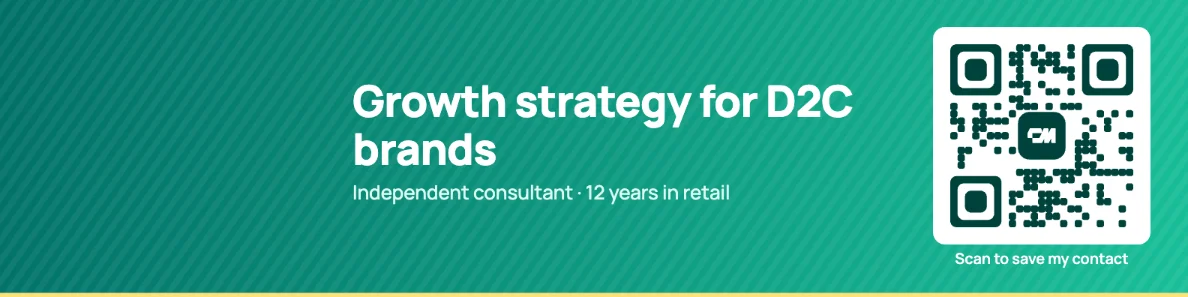
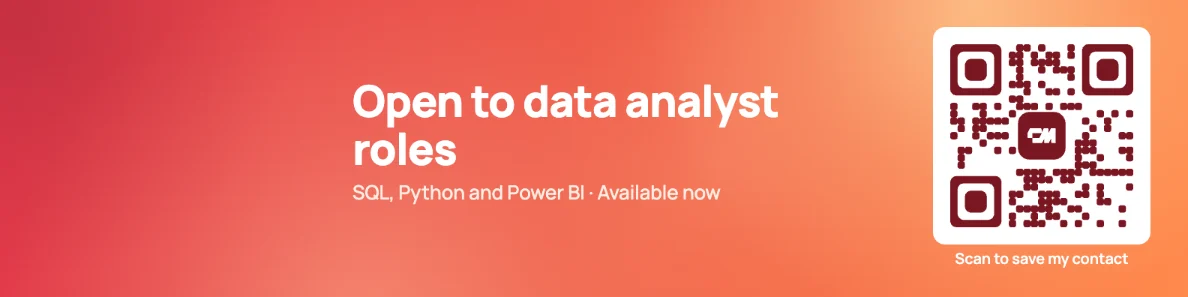
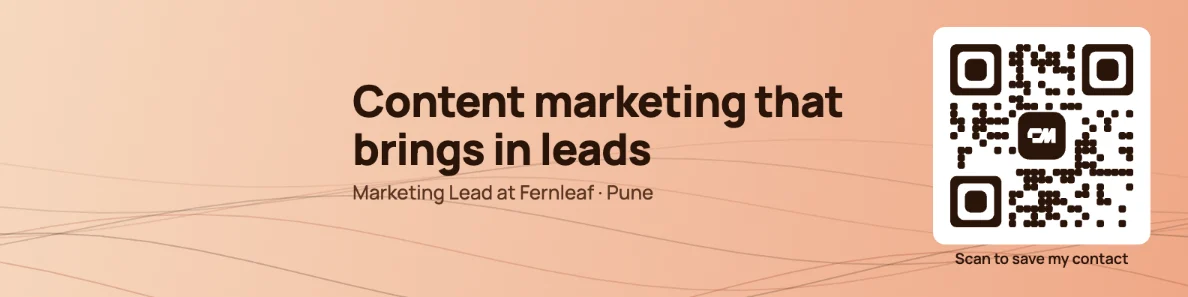
LinkedIn banner size (cover image size)
The LinkedIn banner size for a personal profile is 1584 x 396 pixels, a 4 to 1 ratio. Company pages use a different cover image size. Every banner made here is exported at the personal profile size.
| Profile cover image | Company page cover image | |
|---|---|---|
| Recommended size | 1584 x 396 pixels | 1128 x 191 pixels |
| Aspect ratio | 4 to 1 | About 6 to 1 |
| File types | PNG or JPG | PNG or JPG |
| Maximum file size | 8 MB | 3 MB |
| Where it is set | The camera icon on your cover image | Page admin view, Edit page |
Uploading an image at exactly 1584 x 396 means LinkedIn does not have to crop or stretch it, so text stays sharp and nothing important gets cut off. Images at other sizes are cropped to fit, which is the most common reason a banner's text ends up half hidden.
Where your profile photo overlaps the cover image
Your round profile photo sits over the lower left of the banner, on desktop and in the LinkedIn app. Anything placed there is hidden behind your face. That is why banners made here keep the left third clear, put your headline in the middle, and place the QR code at the right edge.
While you design, switch on Show profile photo and safe area to see exactly where it will fall. On phones the banner is shown smaller, so a headline of a few words reads better than a full sentence.
What to put on your LinkedIn banner
- One clear headline.
- What you do and who you do it for, in under ten words. For example: Helping B2B teams close deals faster.
- One line of proof or detail.
- Your role and company, a specialism, or your city. Keep it to a single line.
- Your brand colours.
- Use your company's colour, or one that matches your profile photo, so the page feels put together.
- A way to reach you.
- A QR code that opens your contact card means someone looking at your profile on a laptop can save you to their phone in one scan.
- Plenty of space.
- Leave the lower left empty for your photo and avoid small text, which becomes unreadable on phones.
Match your LinkedIn banner to your brand colours
Pick from ten colour templates, from violet, ocean blue, coral and magenta to classic ink and paper, and one of eight textures. Or choose Your brand colour and enter any colour: the maker builds a matching gradient, picks white or dark text so your headline stays readable, and shades the QR code to match.
Using the same colour on your banner, your company page and your business card makes your profile easy to recognise, which is most of what personal branding on LinkedIn comes down to.
Why put a QR code on your LinkedIn banner
People look you up on LinkedIn right after they meet you, before a call, and while you share your screen. A QR code on the banner turns that moment into a saved contact: they point their phone at the screen and your free ConnectMachine card opens with a Save contact button, with no connection request to wait on.
The code opens your card rather than holding your details inside it, so you can change your number, email or job later and the banner keeps working. The ConnectMachine logo in its centre tells people the code saves a contact rather than opening an unknown link. It works best on a laptop or desktop screen scanned with a phone, which is why your email still belongs in your LinkedIn contact info too.
LinkedIn banner mistakes to avoid
- Wrong size.
- Anything other than 1584 x 396 gets cropped or stretched, and text is often the first thing cut off.
- Text behind your photo.
- The lower left is covered on every device, so nothing important should go there.
- Too many words.
- A banner is read in a second or two. One headline and one short line is enough.
- Low contrast.
- Light text on a light background, or busy photos behind words, make the headline hard to read.
- Forgetting mobile.
- In the LinkedIn app the banner is small, so check your headline still reads at that size.
How to add or change your LinkedIn cover image
- 01
Open your profile. Go to your LinkedIn profile on a computer or in the app.
- 02
Select the camera icon. It sits at the top right of your cover image. If you have never added one, select Add cover image.
- 03
Upload your banner. Choose Upload photo and pick the PNG you downloaded here.
- 04
Apply it. Check the preview, leave the zoom at its default, and select Apply.
Once it is live, scan the QR code on your profile from a laptop screen to make sure it opens your card.
Make the same banner for Facebook, X and YouTube
Choose a platform at the top of the maker, or download every size at once. Each version is laid out for that platform's safe area, so nothing important gets cropped or hidden.
| Platform | Download size | Safe area | What gets covered or cropped |
|---|---|---|---|
| LinkedIn banner | 1584 x 396 pixels | Right two thirds | Your profile photo covers the lower left. |
| Facebook cover photo | 1640 x 624 pixels | Centre 1280 x 624 | Phones crop the sides. Your profile photo overlaps the lower left. |
| X header photo | 1500 x 500 pixels | Centre 1250 x 400 | Your profile photo covers the lower left. |
| YouTube channel banner | 2560 x 1440 pixels | Centre 1546 x 423 | Only the centre strip shows on phones and computers. TVs show the whole image. |
Facebook: open your profile or Page, select Edit cover photo, choose Upload photo, and pick the Facebook PNG. X: select Edit profile, then the camera icon on the header. YouTube: in YouTube Studio open Customization, then Profile, and change the Banner image.
Facebook shows its cover at 820 x 312 on a computer, so the Facebook version is exported at twice that size to stay sharp on high resolution screens.
LinkedIn banner FAQ
Short answers about size, templates and the QR code.
1584 x 396 pixels for a personal profile, which is a 4 to 1 ratio. This is the size LinkedIn recommends for your cover image or cover photo. Company page cover images are 1128 x 191 pixels. Everything made with this banner maker is exported at 1584 x 396.
Your banner starts the conversation. Your card keeps it going.
The QR code on your banner opens a free ConnectMachine card with your number, email and links and a Save contact button, and you can update it any time.
Get ConnectMachine first on Google
Add us as a preferred source and our free tools show up higher the next time you search.