

vCard QR code generator. Scan it and your contact saves itself.
Put your name, number, email, company and profile link behind one QR code. Anyone who scans it with a phone camera gets your contact card with a Save contact button, so nobody types your details. Pick a business card, table sign or badge design, download it as SVG or PNG, or send it to Canva or Figma to keep designing.
Free, no watermark, no credit card. Update your details any time, even after printing.
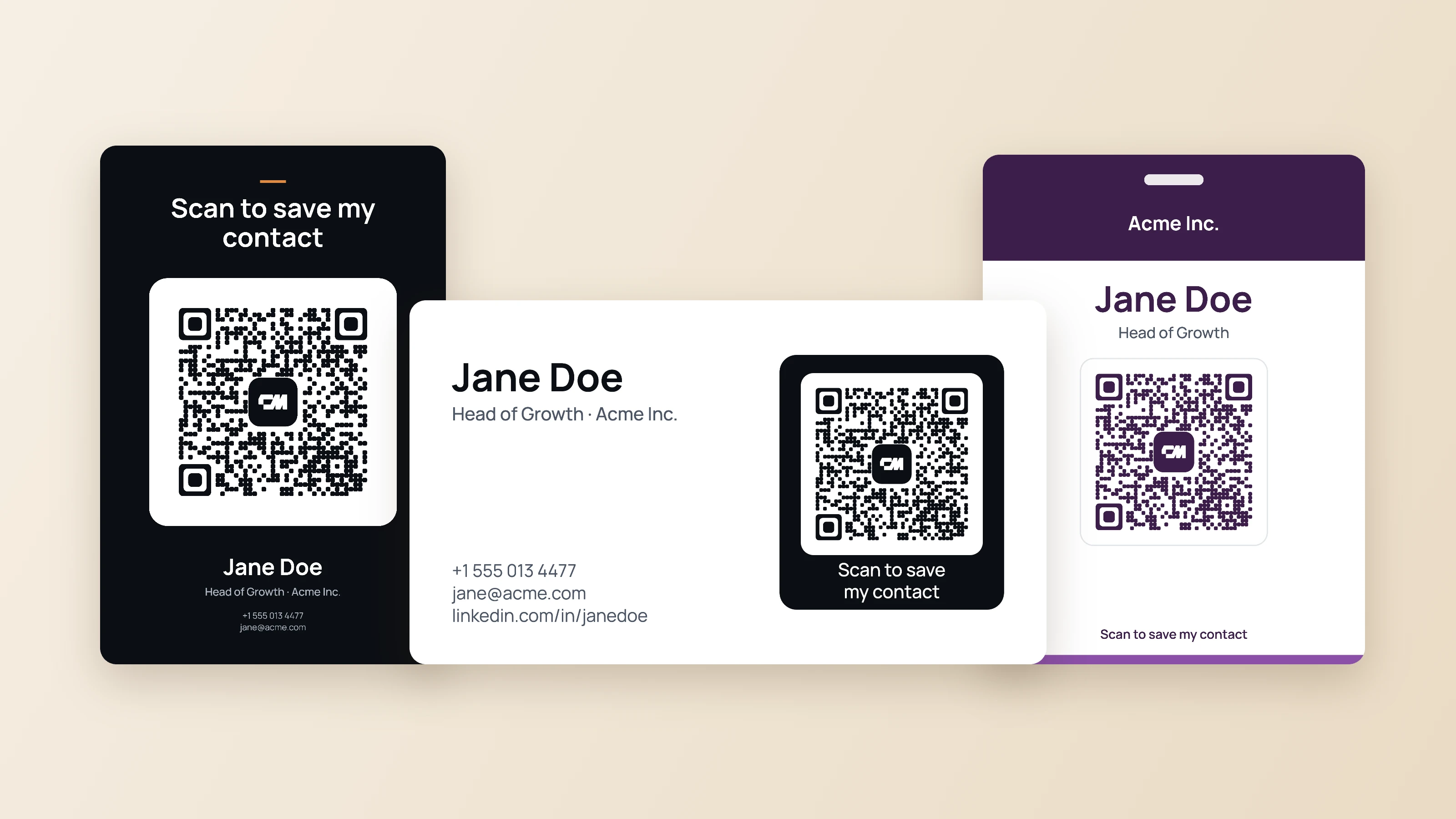
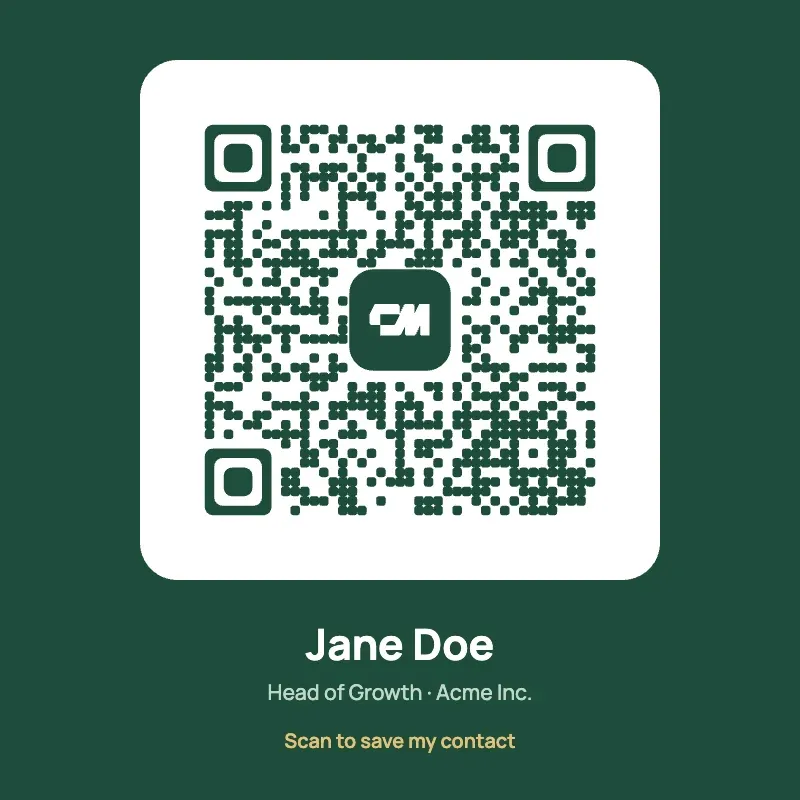
A vCard QR code is a QR code that saves a contact to a phone. When someone scans the code from this generator, their phone opens your ConnectMachine contact card, and one tap on Save contact adds your name, phone number, email, company and profile link to their contacts on iPhone or Android.
The generator is free and adds no watermark. It puts the code on a print-ready business card, a square code, a table sign or an event badge, and exports SVG for print, PNG for screens and a .vcf contact file.
How to create a vCard QR code
Three steps. The preview updates as you type, and the finished file comes out at print size.
- 01
Enter your contact details. Your full name, plus a mobile number, an email or both. Designation, company and a LinkedIn or website link are optional.
- 02
Pick a layout and a colour. Choose a business card, a QR code on its own, a table sign or an event badge. Business cards come in four styles, and you can use one of six palettes or your brand colour.
- 03
Create the code and download it. Select Create my vCard QR code. Scan the result with your own phone, then download SVG for print or PNG for screens, or send the design to Canva or Figma.
What happens when someone scans a vCard QR code
They point their phone camera at the code and tap the link that appears. Your contact card opens in the browser, showing your name, role, company and every way to reach you, with a Save contact button.
One tap on Save contact adds you to their address book, filled in exactly as you entered it. It works with the built-in camera on iPhone and Android, with no app to install. The phone needs a data or Wi-Fi connection to open the card, so for a venue with no signal, keep the .vcf file ready to send as well.
What a vCard QR code is, and why this one is a link
A vCard is the standard file format phones use to swap contacts. It is what gets sent when you share a contact from your phone, and it is why a saved contact arrives with the name, number and email already in the right fields.
There are two ways to put a vCard behind a QR code. A static vCard QR code writes the whole contact into the pattern, so it can never change. A dynamic vCard QR code holds a short link to a contact card, which is what this generator makes.
| Static vCard QR code | This generator (dynamic) | |
|---|---|---|
| What the code holds | The contact itself | A short link to your contact card |
| Change details after printing | No, you need a new code | Yes, update the card and the code keeps working |
| Pattern density | Grows with every field, harder to scan small | Stays small whatever you add |
| What the person sees | An Add contact prompt | Your card with a Save contact button, plus your links |
| Needs a connection to scan | No | Yes, to open the card |
The link is the reason your business cards stay useful when your number, job or email changes. You edit the card in the ConnectMachine app and every printed code opens the new details.
vCard QR code designs for cards, desks and badges
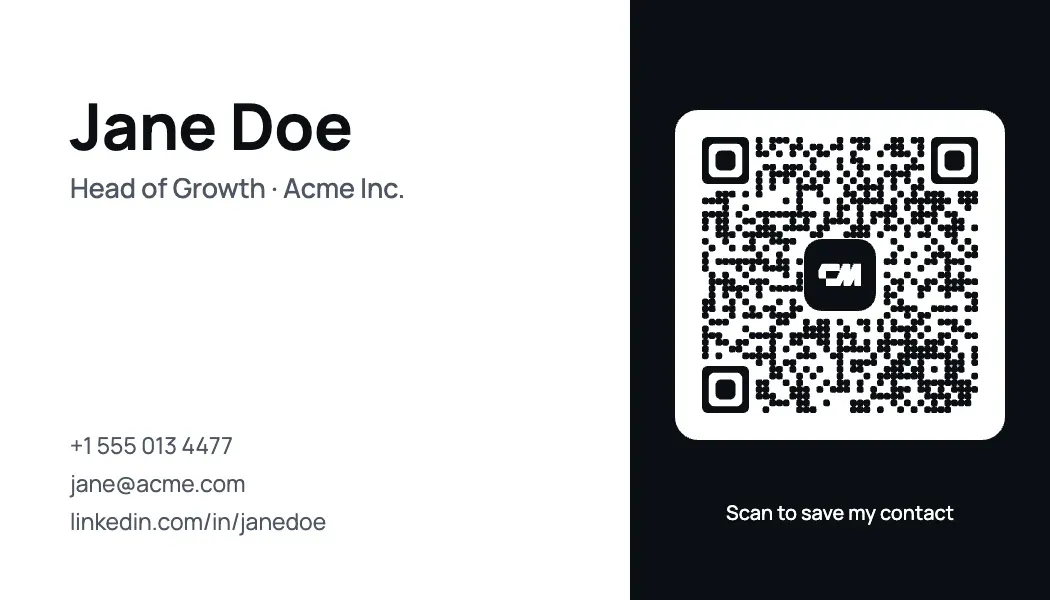
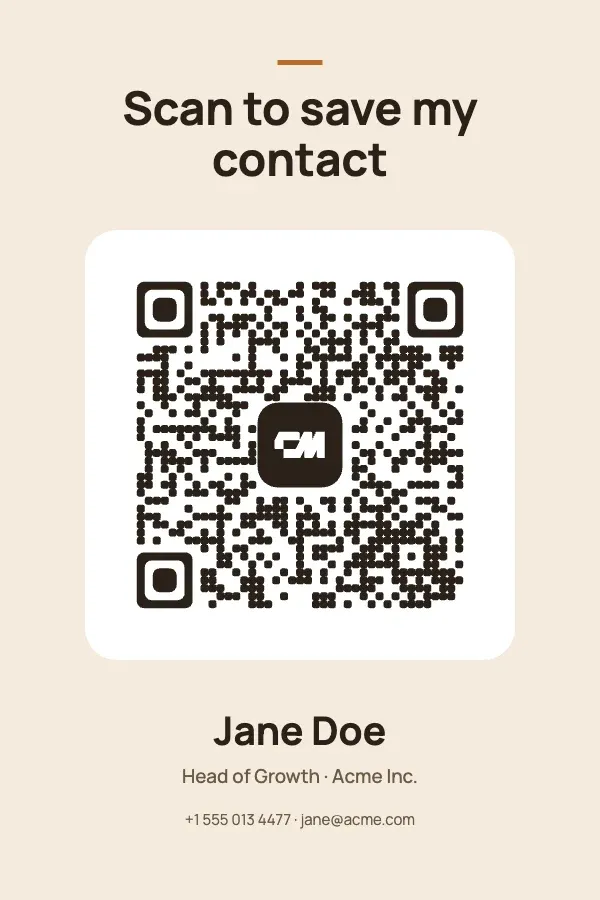
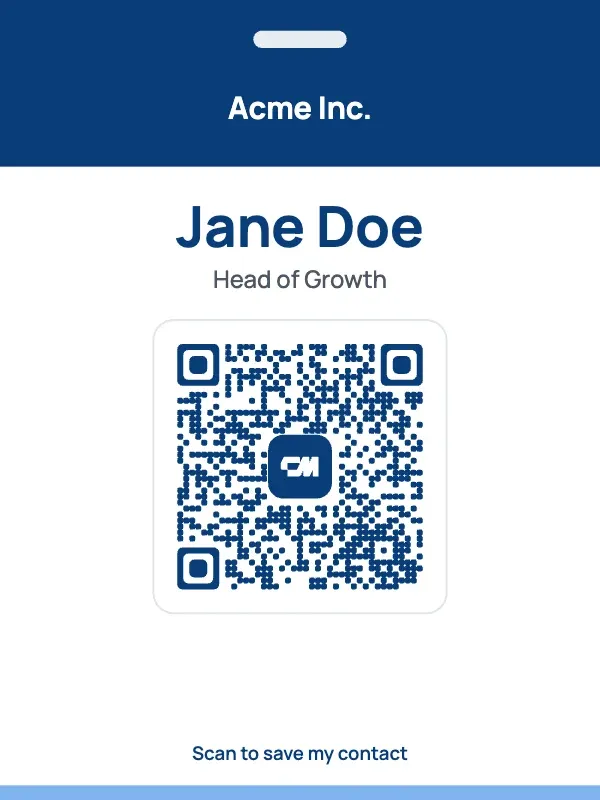
Every layout downloads at its real print size, 300 dots per inch, with the code already sized to scan. Pick one to start from it.
How to put a QR code on a business card so it scans
A code that looks fine on screen can fail on paper. Four rules keep it scanning.
- Size.
- Keep the code at least 2 cm, about 0.8 inches, across on a business card. For a sign scanned from a metre away, aim for about 10 cm. The business card layout already prints the code, margin included, at about 2.5 cm.
- Contrast.
- Print a dark code on a light background. Light codes on dark grounds fail on many phone cameras, which is why every design here keeps the code dark on a white tile.
- Margin.
- Leave clear space around the code, at least the width of four of its small squares. Do not let text, a border or a crop line run into it.
- Test.
- Scan the printed proof with an iPhone and an Android phone before you order the full run.
Download as SVG for print, or PNG for screens
SVG is made of shapes rather than pixels, so the code stays sharp at any size. It is what printers ask for. PNG is an ordinary image for places the code is shown on a screen.
| File | Best for | Details |
|---|---|---|
| SVG | Business cards, badges, signs, anything printed | Vector, sized in inches, font included |
| PNG | Slides, email signatures, social posts | Twice the print size in pixels, no watermark |
| .vcf | Email attachments, places with no signal | Your contact as a file any phone can save |
Send your vCard QR code to Canva or Figma
Start with a design here, then keep working where you already design. The code goes with it.
- Figma.
- Choose Send to Figma after you create the code. The design is copied and Figma opens in a new tab. Open any file and paste, and it lands as layers named Background, Name, Role, Details, QR code and Call to action, with the text still editable.
- Canva.
- Choose Send to Canva. The design is saved to your computer as an SVG and Canva opens in a new tab. Choose Uploads, drop the file in, and place it on any design. The code stays sharp at any size.
Change anything around the code, but keep the code itself dark on a light background, with its white margin and its three corner squares untouched. Scan the final design with your phone before printing.
How to update a vCard QR code after printing
Because the code holds a link to your card, you change the card, not the code.
- 01
Get the ConnectMachine app. Download it on iPhone or Android and sign in with the email or phone number you used here.
- 02
Edit your card. Change your number, email, job title or links, or add a photo and your logo.
- 03
Scan to check. Scan one of your printed codes. It opens the updated card straight away.
Nothing to reprint. The same holds for every business card, badge and sign you made with the code.
vCard QR code FAQ
Short answers about scanning, updating and printing.
A QR code that saves a contact to a phone. Scanning the code from this generator opens your ConnectMachine contact card, and one tap on Save contact adds your name, phone number, email, company and links to the phone's contacts.
Getting saved is the easy part. Being remembered is not.
ConnectMachine scans the cards you collect, records who you met and why it mattered, and answers questions like who did I meet at Web Summit who works in fintech.
Get ConnectMachine first on Google
Add us as a preferred source and our free tools show up higher the next time you search.