
Which steps you need depends on which Outlook you use. This guide covers each version: the new Outlook for Windows, Outlook on the web and Outlook.com, classic Outlook (including Outlook 365 desktop), Outlook for Mac, and the Outlook mobile app. The steps follow Microsoft's support guide, checked 26 October 2026.
Where signatures live in each version of Outlook
| Outlook version | Where signatures live |
|---|---|
| New Outlook for Windows | Settings > Accounts > Signatures |
| Outlook on the web and Outlook.com | Settings > Accounts > Signatures |
| Classic Outlook for Windows | Message > Signature > Signatures, or File > Options > Mail > Signatures |
| Outlook for Mac | Outlook > Settings > Signatures |
| Outlook app on iPhone and Android | Settings > Signature |
How to add a signature in the new Outlook and Outlook on the web
These steps work for the new Outlook for Windows, Outlook on the web and Outlook.com.
- 1
Open Settings (the gear icon).
- 2
Go to Accounts > Signatures.
- 3
If you have more than one account, choose the account the signature is for.
- 4
Click Add signature and give it a name.
- 5
Type your signature and format it with the toolbar.
- 6
Under the editor, choose whether to use it for new messages, for replies and forwards, or both.
- 7
Click Save.
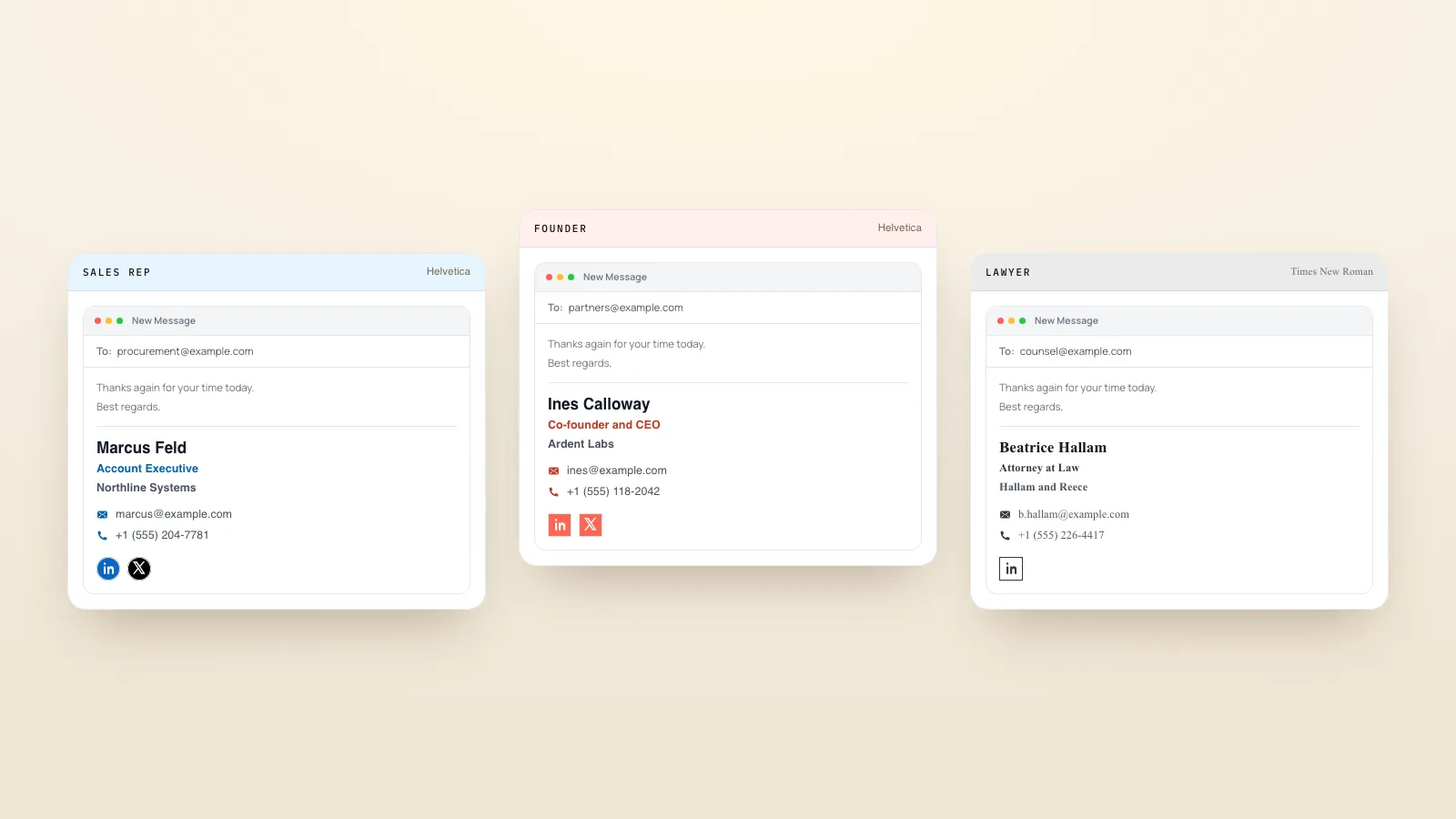
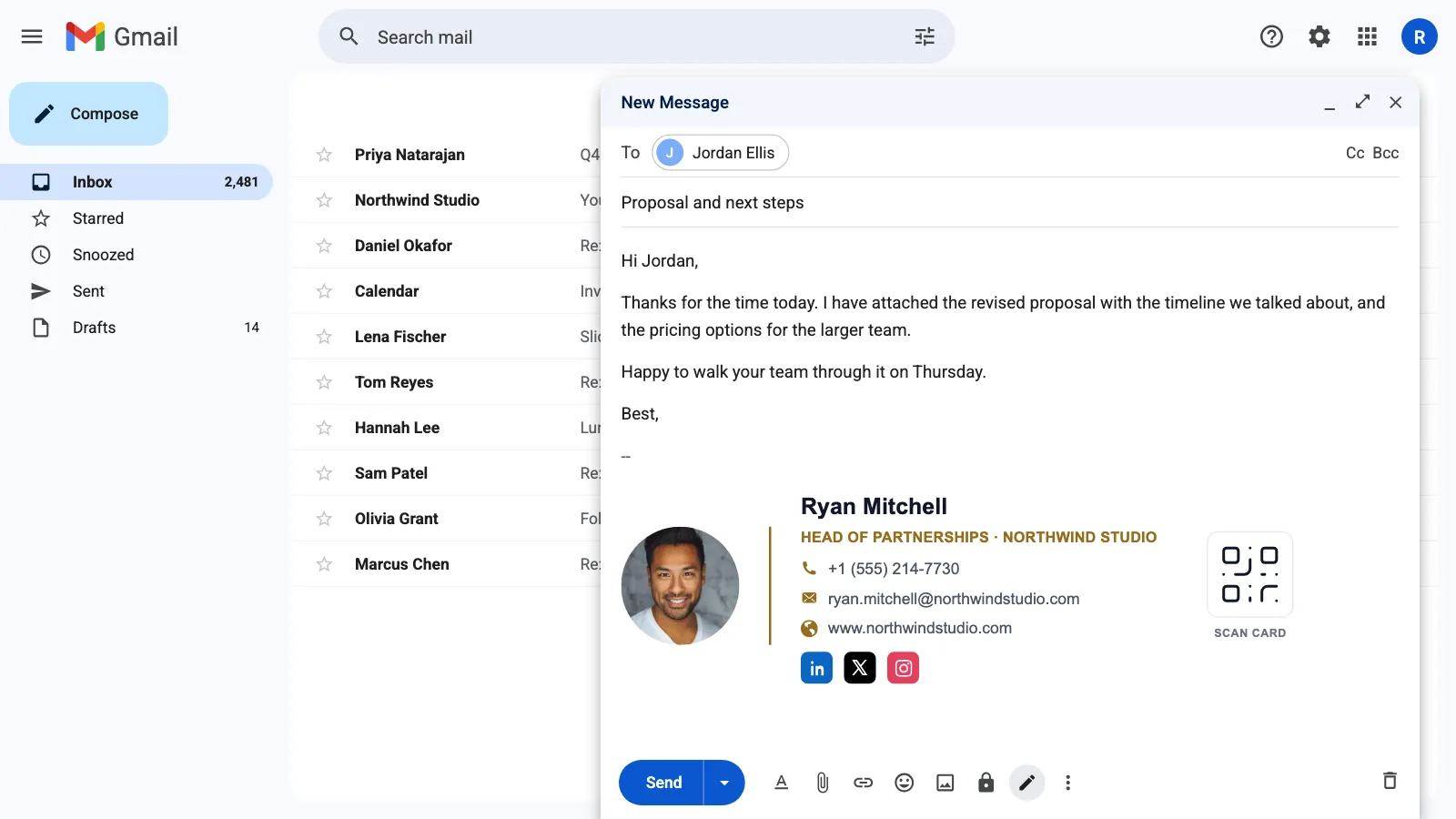
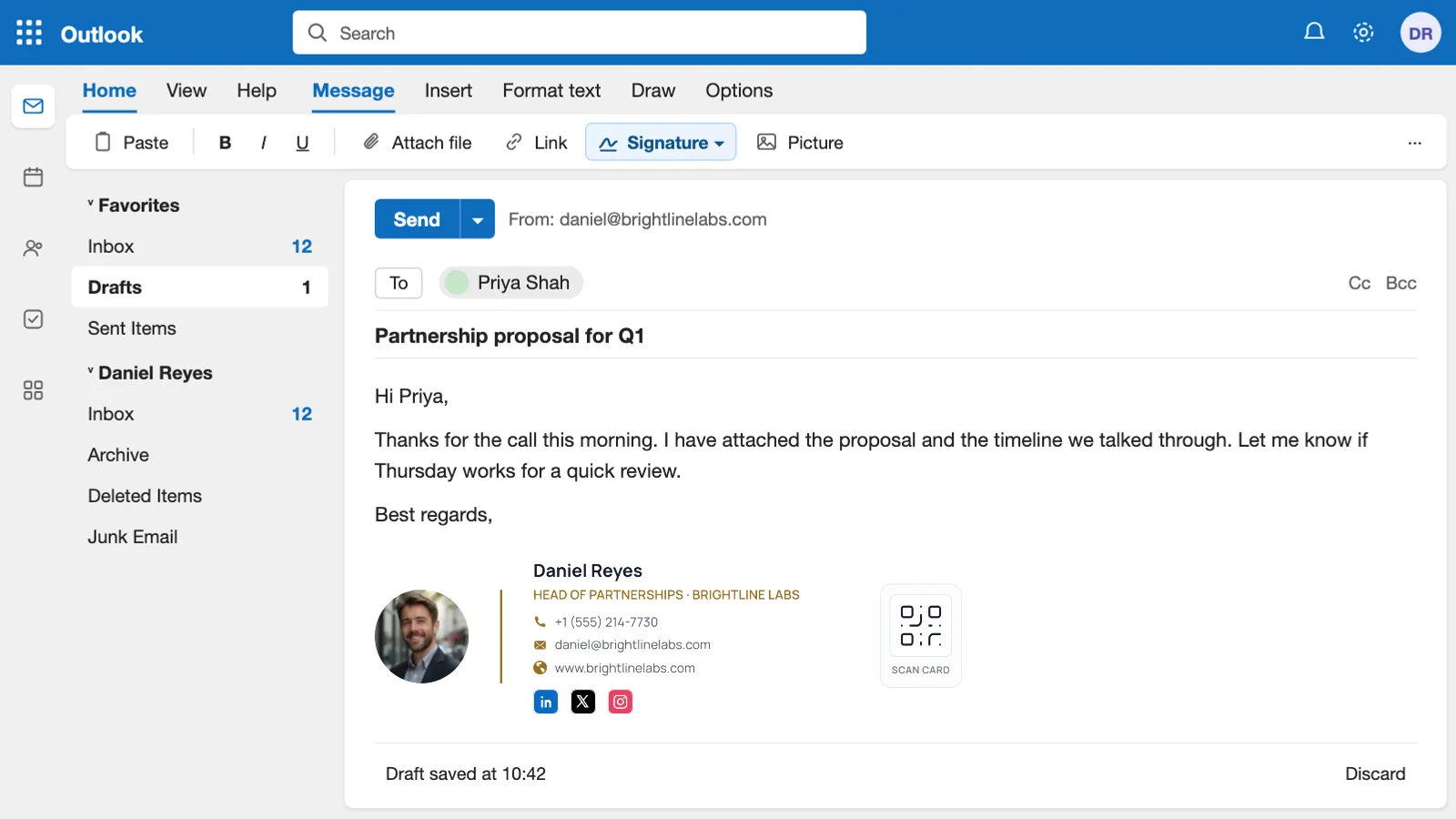
For a signature with a logo, photo and social icons, design it in our free email signature generator, copy it, and paste it into the editor in step 5.
To insert a signature by hand while you write, go to the Message tab, click Signature and pick one.
If you use a Microsoft account with both the Outlook app and Outlook on the web, Microsoft says to create your signature in both.
How to change your signature in the new Outlook
- 1
Go to Settings > Accounts > Signatures.
- 2
Choose the signature and click Edit signature.
- 3
Make your changes and click Save.
How to add a signature in classic Outlook for Windows
Classic Outlook is the desktop app that comes with Microsoft 365 (often called Outlook 365).
- 1
Open a new email.
- 2
On the Message menu, click Signature > Signatures.
- 3
Under Select signature to edit, click New and type a name.
- 4
Under Edit signature, type and format your signature.
- 5
Under Choose default signature, pick the email account, then the signature for New messages and for Replies/forwards.
- 6
Click OK.
The signature is not added to the email you opened in step 1. Close it and open a new one to see it.
How to change or edit a signature in classic Outlook and Outlook 365
- 1
Go to File > Options > Mail > Signatures.
- 2
Click the signature you want to change.
- 3
Edit it in the box below, click Save, then OK.
Add a logo or image in classic Outlook
In the signature editor, click the Image icon and choose your file. To resize it, right-click the image, choose Picture > Size, and keep Lock aspect ratio ticked so it does not stretch.
Classic Outlook stores signatures on the computer, not in your account. If you move to a new computer, you need to set the signature up again.
How to add a signature in Outlook for Mac
- 1
In the menu bar, go to Outlook > Settings.
- 2
Click Signatures.
- 3
Click + to add a signature and give it a name.
- 4
Type your signature in the editor. Use See more items (…) to add pictures, links or tables.
- 5
Close the window to save.
To set a default, go back to Signatures and use Set default signature to pick one for each account, For new messages and For replies/forwards. To insert one by hand, click Signature on the ribbon while you write.
How to add a signature in the Outlook app on iPhone and Android
- 1
Open the Outlook app and go to Settings.
- 2
Under Mail, tap Signature.
- 3
Type your signature. If you have more than one account, turn on Per Account Signature to set one for each.
The app keeps its own signature, separate from the one on your computer, so set it up here too.
Outlook signature not showing? Common fixes
No signature on new emails
A signature only appears on its own if it is set as the default. Check the default settings for your account in the steps above.
The signature is gone after switching to the new Outlook
Classic Outlook saves signatures on your computer, so they may not carry over. Check for it, and if it is missing, create it again in Settings > Accounts > Signatures.
The signature is right on one account but missing on another
Signatures and defaults are set per account. Choose the other account in the signature settings and set a default for it too.
Images show up as attachments
This usually comes from the way the signature was pasted. Microsoft notes that VML code in a signature can cause it. Our tool page covers this in its FAQ: see the free email signature generator.
Add your digital business card to your Outlook signature
A link or QR code to your digital business card lets people save your details in one tap. Our guide on adding a digital business card to your email signature shows how.
Using Gmail too? See how to add a signature in Gmail. For layouts to copy, browse our email signature examples and templates.
Microsoft and Outlook are trademarks of the Microsoft group of companies. ConnectMachine is not affiliated with Microsoft.