
This guide covers adding, changing and removing a Gmail signature on every device, setting different signatures for new emails and replies, and fixing the problems people run into most. The steps follow Google's own Gmail Help.
How to add a signature in Gmail on a computer
- Open Gmail in your browser.
- In the top right, click Settings (the gear icon), then See all settings.
- Stay on the General tab and scroll down to the Signature section.
- Click Create new, give the signature a name, and click Create.
- Type your signature in the box. Use the toolbar to change the style or add an image or link.
- Under Signature defaults, pick which signature to use for new emails and for replies and forwards.
- Scroll to the bottom of the page and click Save Changes.
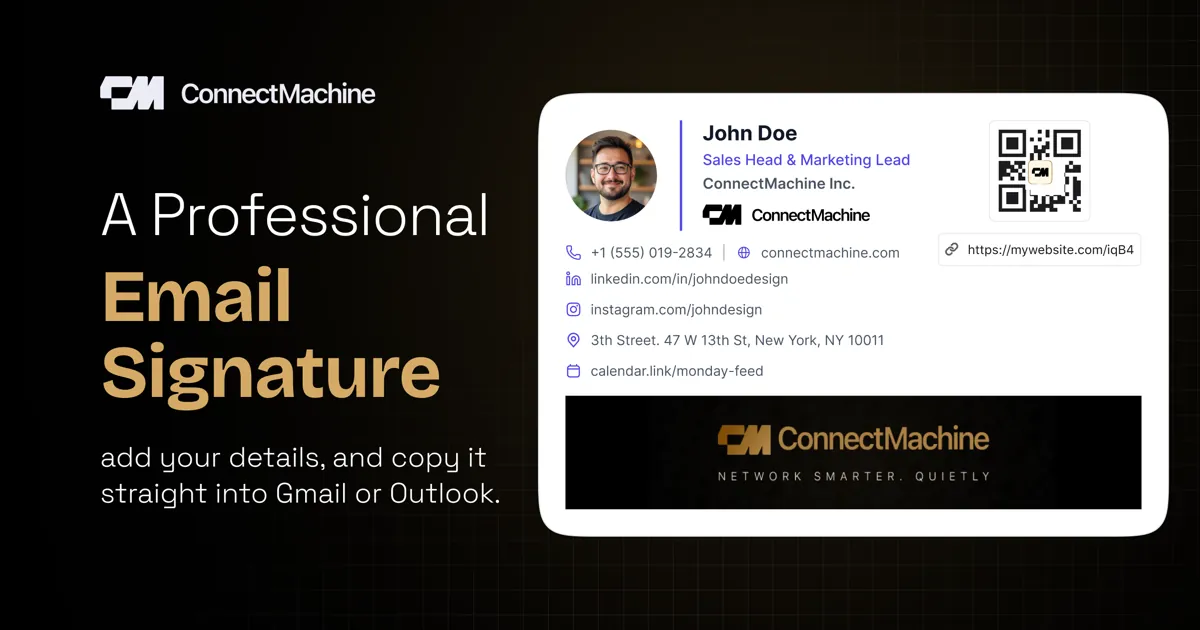
If you want a signature with a photo, logo and social icons, it is faster to design it in our free email signature generator, copy it, and paste it into the Gmail signature box in step 5.
Gmail signatures can be up to 10,000 characters. Images count toward that limit, so a large pasted image can push a signature over it.
How to change your signature in Gmail
- Open Gmail, click Settings, then See all settings.
- On the General tab, scroll to Signature and click the signature you want to change.
- Edit the text, images or links. Click Edit next to the name if you want to rename it.
- Click Save Changes at the bottom of the page.
To remove a signature, select it in the same section, click Delete, confirm with Delete again, and then click Save Changes.
Use more than one signature
Gmail lets you keep several signatures, for example a full one for new emails and a short one for replies. Set the defaults under Signature defaults in the Signature section.
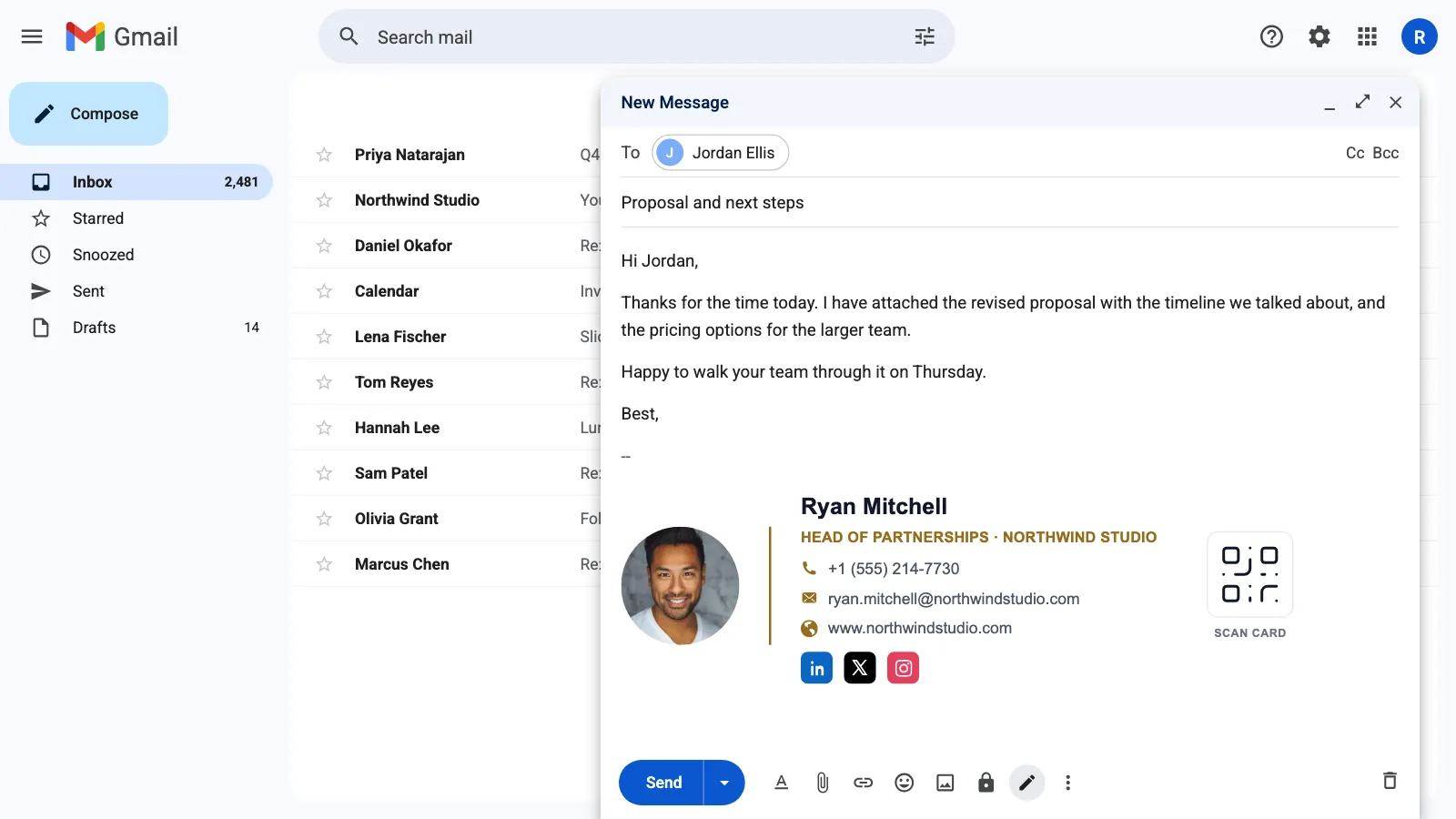
To switch signatures while you write, click the Insert signature icon (a pen) at the bottom of the message window and pick the one you want.
If you send email from more than one address in Gmail, a drop-down above the signature box lets you set different defaults for each address. If the drop-down is missing, check Settings > Accounts and Import > Send mail as to confirm the address is added.
How to add a signature in the Gmail app on Android
- Open the Gmail app.
- Tap Menu (three lines) in the top left, then Settings.
- Choose the Google account you want to add a signature to.
- Tap Mobile signature.
- Type your signature and tap OK.
If you do not set a mobile signature, the Gmail app on Android uses the signature you set up on your computer.
How to add a signature in the Gmail app on iPhone and iPad
- Open the Gmail app.
- Tap Menu (three lines) in the top left, then Settings.
- Under Compose and Reply, tap Signature settings.
- Turn on Mobile Signature.
- Add or edit your signature, then tap Back to save.
The mobile signature is set per account. If you have more than one Google account in the app, repeat these steps for each one.
Signature image sizes for Gmail
Images in a Gmail signature can be resized to Small, Medium, Large or Original size after you add them. Google recommends these sizes:
| Height | Width | |
|---|---|---|
| Recommended | 70 to 100 px | 300 to 400 px |
| Maximum | 100 px | 1000 px |
A headshot or logo that is much larger than this tends to look oversized on phones, and it eats into the 10,000-character limit.
Gmail signature not working? Common fixes
The signature is hidden behind three dots
Gmail sometimes folds repeated text, including signatures, into a Show trimmed content button (three dots). Click it to see the signature. It is still sent, only hidden in the thread view.
You cannot format your signature
If the formatting options are greyed out, you may be writing in plain text mode. Open a new email, click More options (three dots at the bottom of the message window) and turn off Plain text mode.
The signature looks wrong after pasting
Pasting from a document or website can bring hidden formatting with it. Select the signature in Settings, click Remove formatting in the toolbar, then style it again. Or build it in a signature generator, which outputs clean code that Gmail accepts.
The signature does not show for one address
Each "Send mail as" address has its own default. Pick the address in the drop-down above the signature box and set a default for it.
Add your digital business card to your Gmail signature
A link or QR code to your digital business card lets people save your details to their phone in one tap, instead of copying them out of your signature. Our guide on adding a digital business card to your email signature walks through it.
Using Outlook as well? See how to add or change a signature in Outlook. For ideas on what to put in it, browse our email signature examples and templates.
Gmail is a trademark of Google LLC. ConnectMachine is not affiliated with Google.