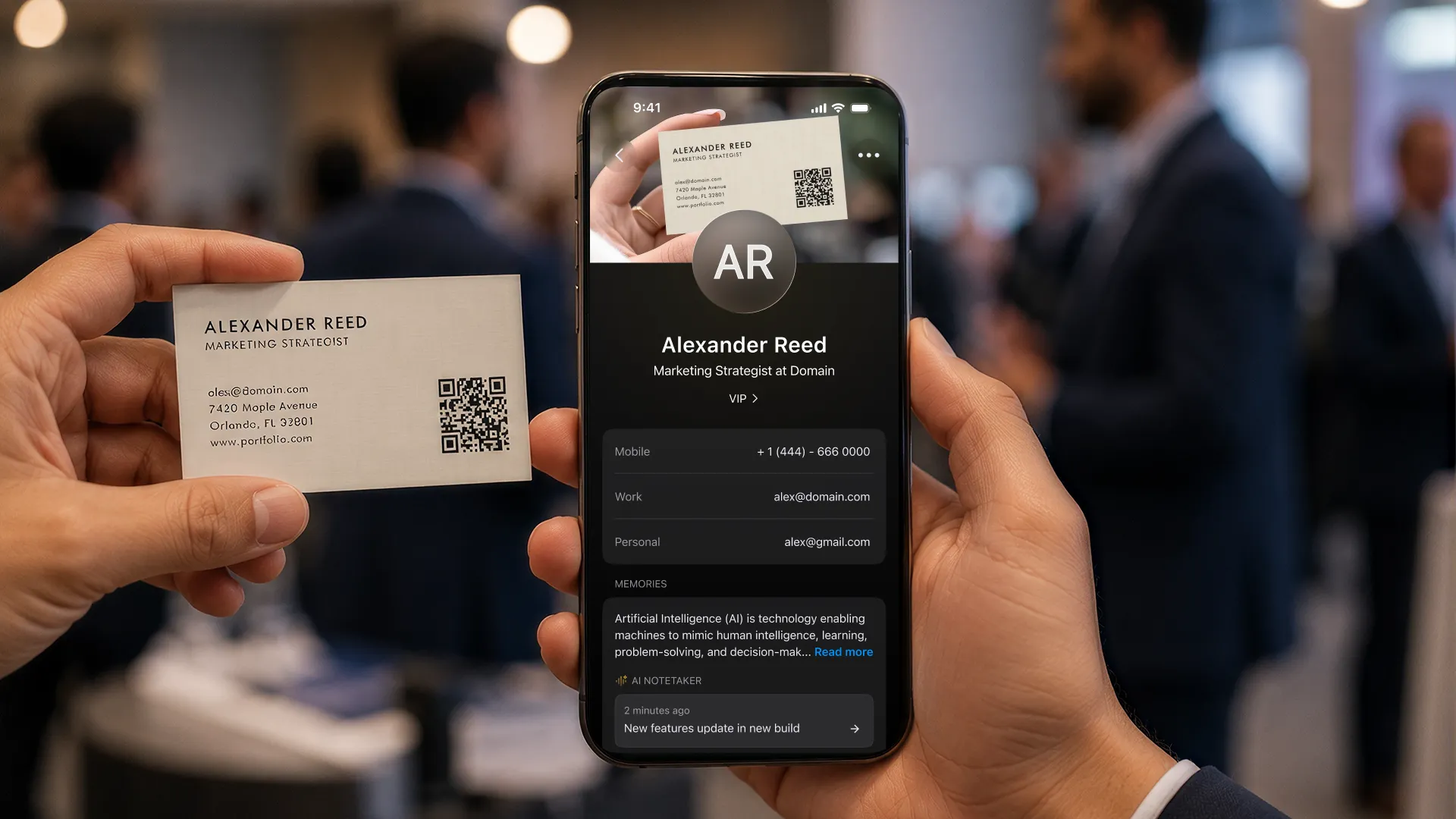

Every networker has the drawer: paper cards from events, collected with good intentions and never typed up. In one r/sales thread the breaking point was losing a prospect's card entirely, and the fix people landed on was the obvious one: digitize the cards while you still have them.
The typing is what stops everyone. A stack of forty cards is an evening of squinting at fonts and second-guessing whether that character is a 1 or an l. This guide covers the fast way: bulk scanning to CSV or Excel with AI doing the reading, plus the accuracy habits that keep the review step short.
The fast way: bulk scan, review, export
Our free bulk business card scanner runs in the browser with no account: you upload photos of your cards, the AI reads every field, and you download a spreadsheet. It handles up to 10 cards per batch (5 MB total, as JPG, PNG, WebP, or one ZIP), reads five languages (English, Spanish, French, Italian, and Russian), and highlights the fields it is unsure about so your review lands exactly where the errors are.
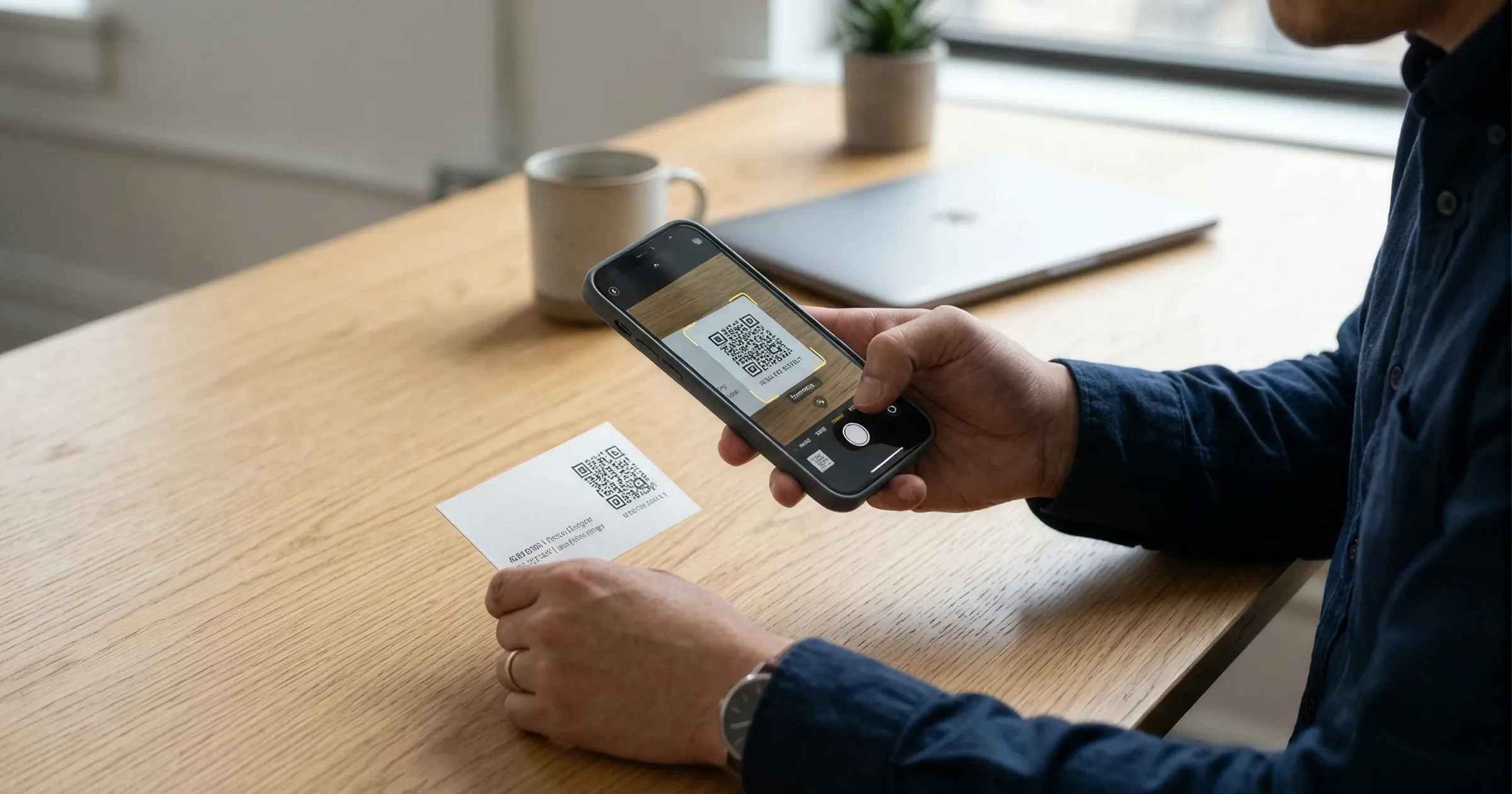
- Photograph your cards, or gather the photos you already have; one card per image works best.
- Upload them to the scanner, as individual images or a single ZIP of the batch.
- Review the results table: fix anything highlighted, drop cards you do not want.
- Export as CSV or Excel for your spreadsheet, or vCard for phone contacts.
- Repeat for the next batch of 10 until the drawer is empty.
The scanner extracts names, job titles, companies, phone numbers, emails, websites, and social handles into separate columns, which is what makes the export genuinely usable: a spreadsheet where every field is its own column, not a blob of text per card. Your card images are deleted once processing is done.
Getting it into Excel, your CRM, or your phone
Excel and Google Sheets
The Excel export opens directly. If you take CSV instead, open it via Data import rather than double-clicking when your cards include international characters, so the encoding survives.
CRMs
Every mainstream CRM imports CSV with column mapping. Export once, map name, company, email, and phone to your CRM's fields, and the whole stack lands as leads in one import instead of forty manual entries.
Phone contacts
The vCard export imports straight into iPhone and Android contacts. Use it for the people you will actually call, and keep the spreadsheet as the full archive.
The habits that keep review time short
- Shoot straight-on in even light; glare from glossy cards is the top cause of misreads.
- Fill the frame with the card and keep the background plain.
- Photograph both sides when the back carries the details, and upload both.
- Trust the highlighting: review the flagged fields first, then spot-check a few clean ones.
- Keep the original photos until after the export opens correctly.
Stop the drawer from refilling
Bulk scanning clears the backlog; the better habit is capturing cards the day you receive them. In the ConnectMachine app, the AI scanner turns a card into a contact on the spot (3 scans free, unlimited on the $5.99 Individual plan). And if you live in WhatsApp, you do not even need to open the app: send a photo of the card to the WhatsApp Assistant and the contact appears in your app, processed and filed.
One honest caveat about spreadsheets: they hold data, not context. Six months later, the row tells you a name and a company, but not what you talked about or what you promised. That is what a contact manager with notes and AI recall adds on top of the export, and it is the difference between an archive and a network.