

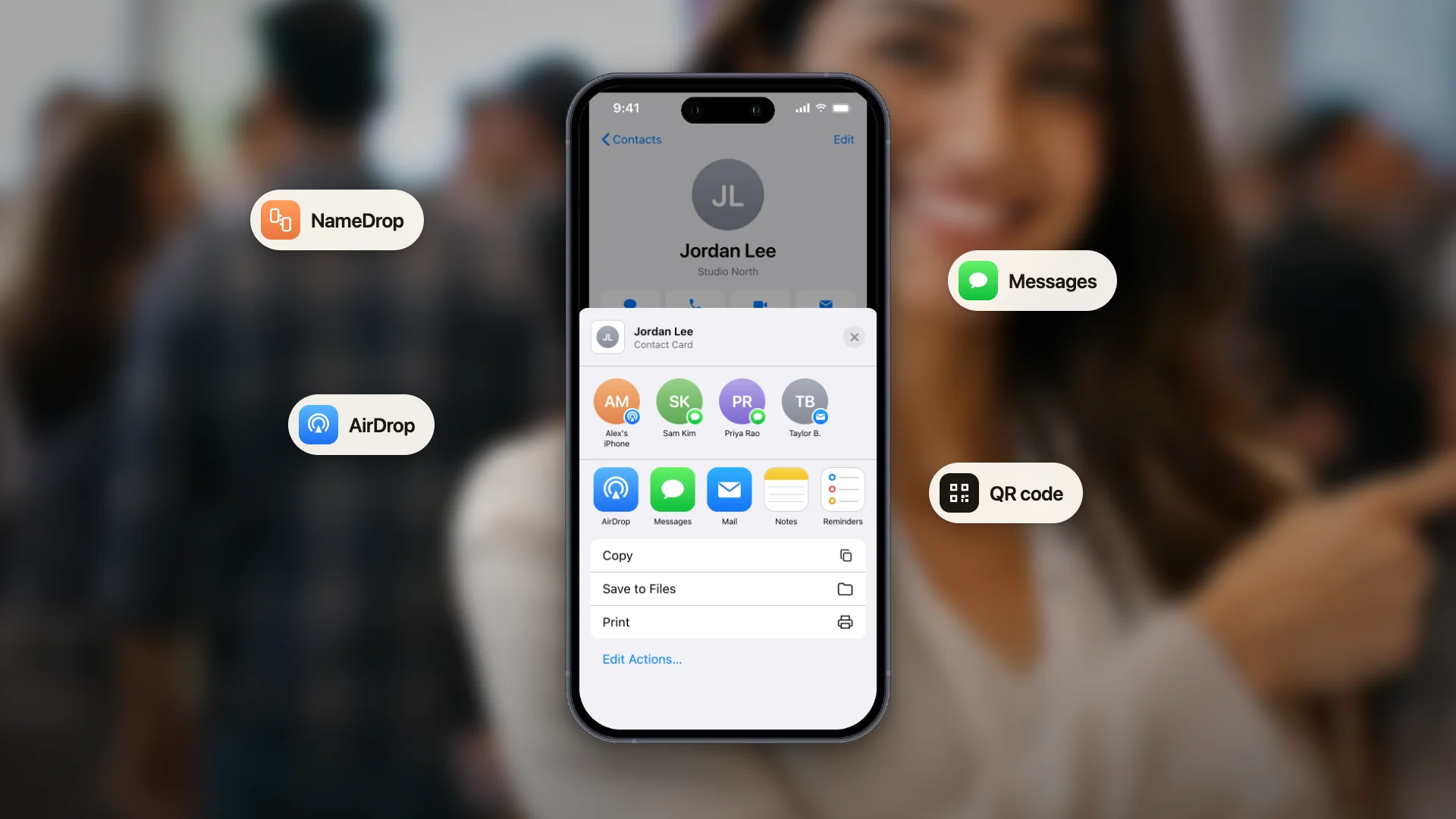
To share a contact on iPhone, hold your iPhone near the other person's iPhone and use NameDrop, or open the Contacts app, tap the contact, then tap Share Contact. NameDrop is fastest in person. Share Contact works for any contact and any app. For Android phones, send the contact file or show a QR code.
How to share a contact on iPhone with NameDrop
NameDrop is the quickest way to swap contact details with someone standing next to you. It works between two iPhones, or an iPhone and a recent Apple Watch (Apple Watch Ultra models, Series 7 and later, and SE 2nd generation or later). It is on by default.
- 1
Hold the top of your iPhone a few centimeters from the top of the other person's iPhone or Apple Watch.
- 2
Keep the devices close until NameDrop appears on both screens.
- 3
Choose to share your contact card and receive theirs, or to only receive theirs.
- 4
If you are sharing, pick the fields you want to include (for example, one phone number and a work email), then tap Save. NameDrop remembers these fields for next time.
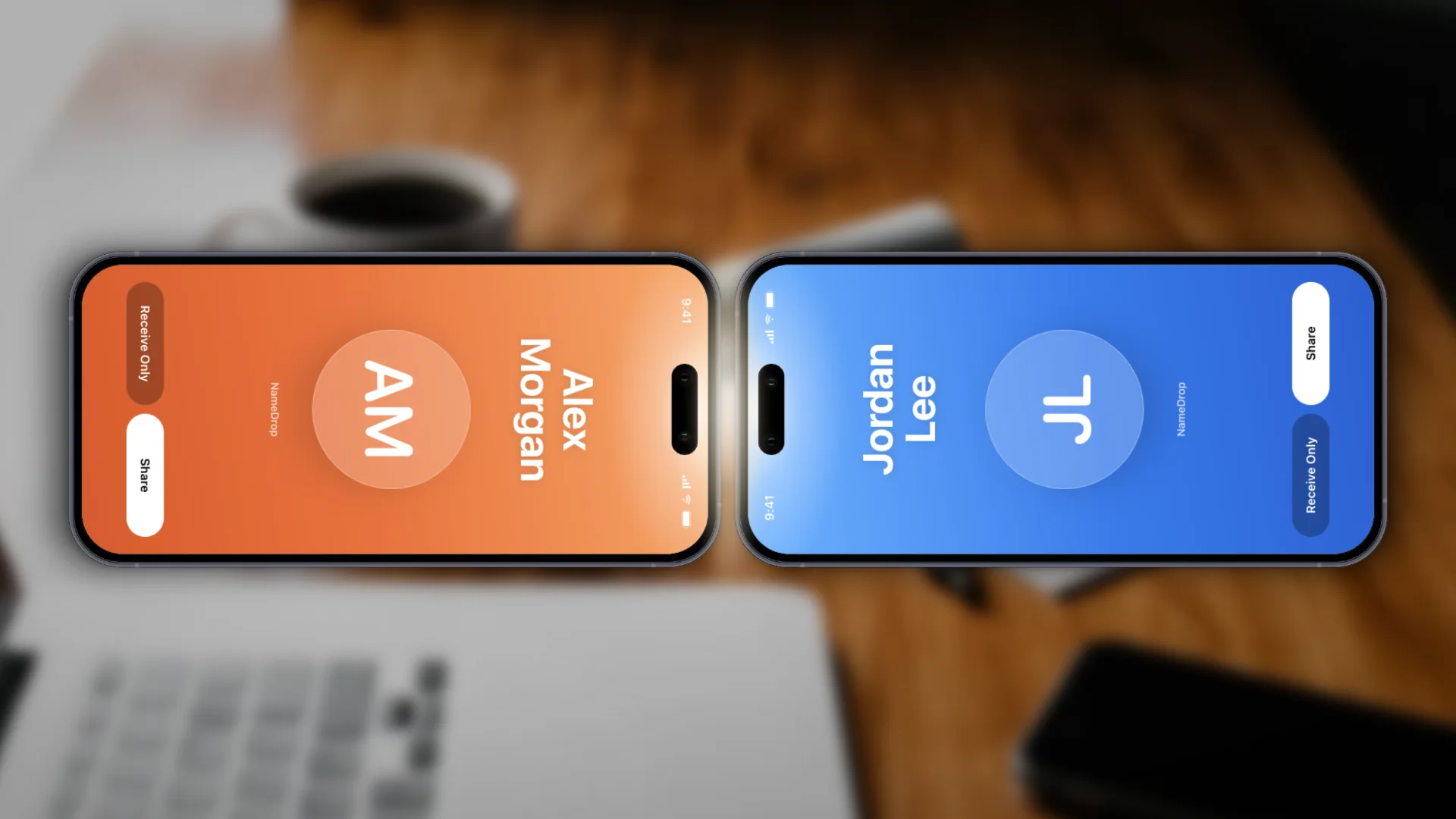
To cancel, move the phones apart or lock your iPhone before the transfer finishes. NameDrop only sends new contact information; it does not update a contact the other person already has.
To turn NameDrop off, go to Settings, then General, then AirDrop, and turn off Bring Devices Together. Steps from Apple's NameDrop guide.
How to share any contact from the Contacts app
NameDrop shares your own card. To send someone else's details, for example a colleague's number to a client, use the Contacts app.
- 1
Open the Contacts app.
- 2
Tap the contact, then tap Share Contact.
- 3
Choose the fields you want to share.
- 4
Tap the share button and pick how to send it, such as Messages, Mail or AirDrop.
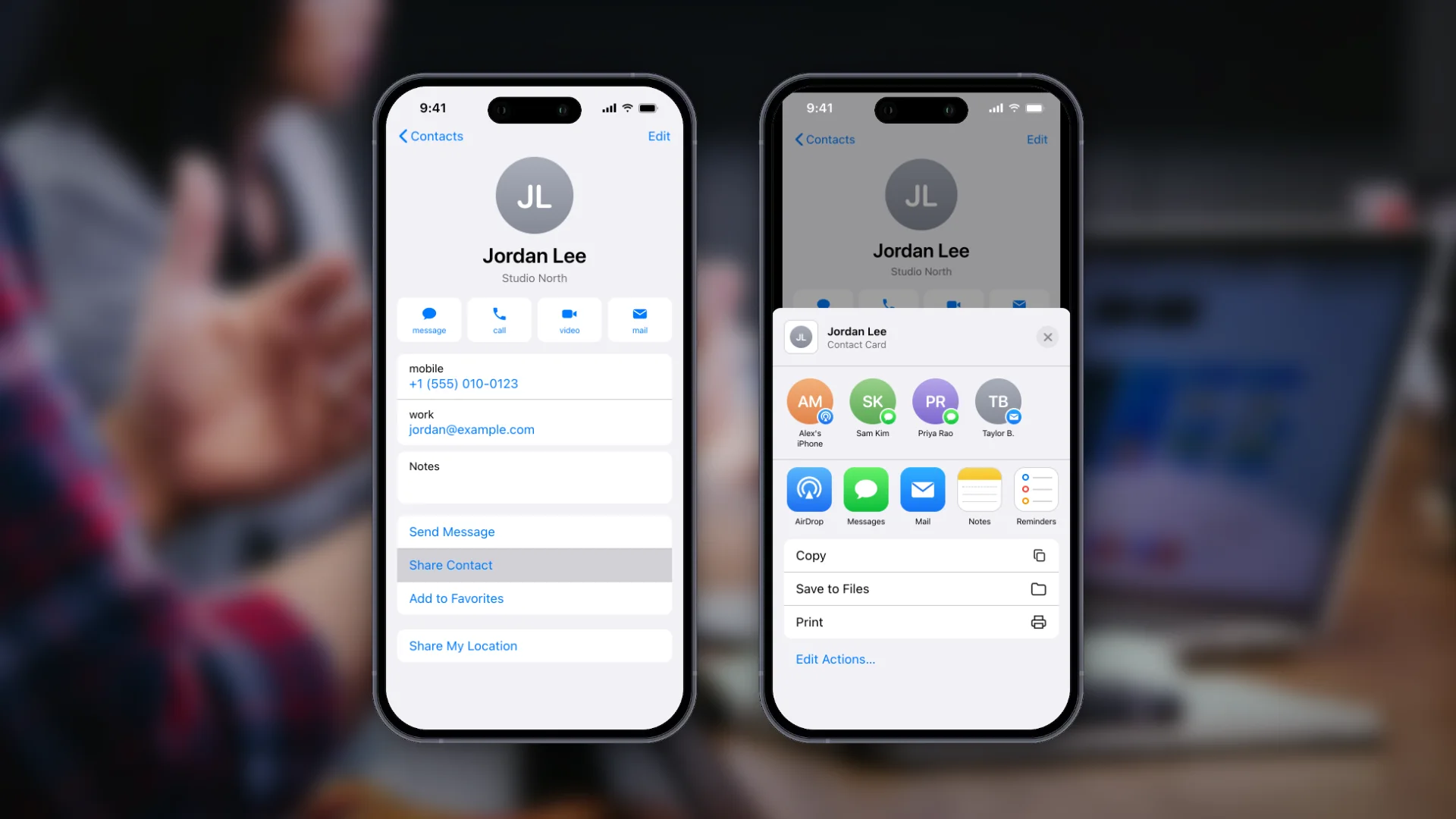
The other person receives a contact file they can save in one tap. Steps from Apple's Contacts guide.
How to share a contact from iPhone to Android
NameDrop only works between Apple devices, so it is no help when the other person has an Android phone. Two options work on any phone:
- Send the contact file. Use Share Contact in the Contacts app, then send it by Messages, email or WhatsApp. The Android phone opens it as a contact to save.
- Show a QR code. Any phone camera can scan a QR code, so the other person scans it and saves your details. Make one for free with the vCard QR code generator, or use a digital business card on your iPhone, which opens as a page with your photo and links.
Which way to share a contact should you use
| Method | Best when | The other person needs | Works with Android |
|---|---|---|---|
| NameDrop | Both people have an iPhone (or Apple Watch) and are standing together | An iPhone or recent Apple Watch | No |
| Contacts app share (Messages, Mail, AirDrop) | Sending your own or someone else's details to a chat or inbox | Messages, email or a nearby Apple device | Yes, by message or email |
| QR code | Events, print, slides, mixed iPhone and Android groups | A phone camera | Yes |
Share your details without exchanging phones
NameDrop and AirDrop need the other person right next to you, on an Apple device. For everything else (an event badge, a slide at the end of a talk, an email signature, a WhatsApp chat) a link or QR code does the job. A free digital business card gives you both, and the other person saves your details without installing anything.