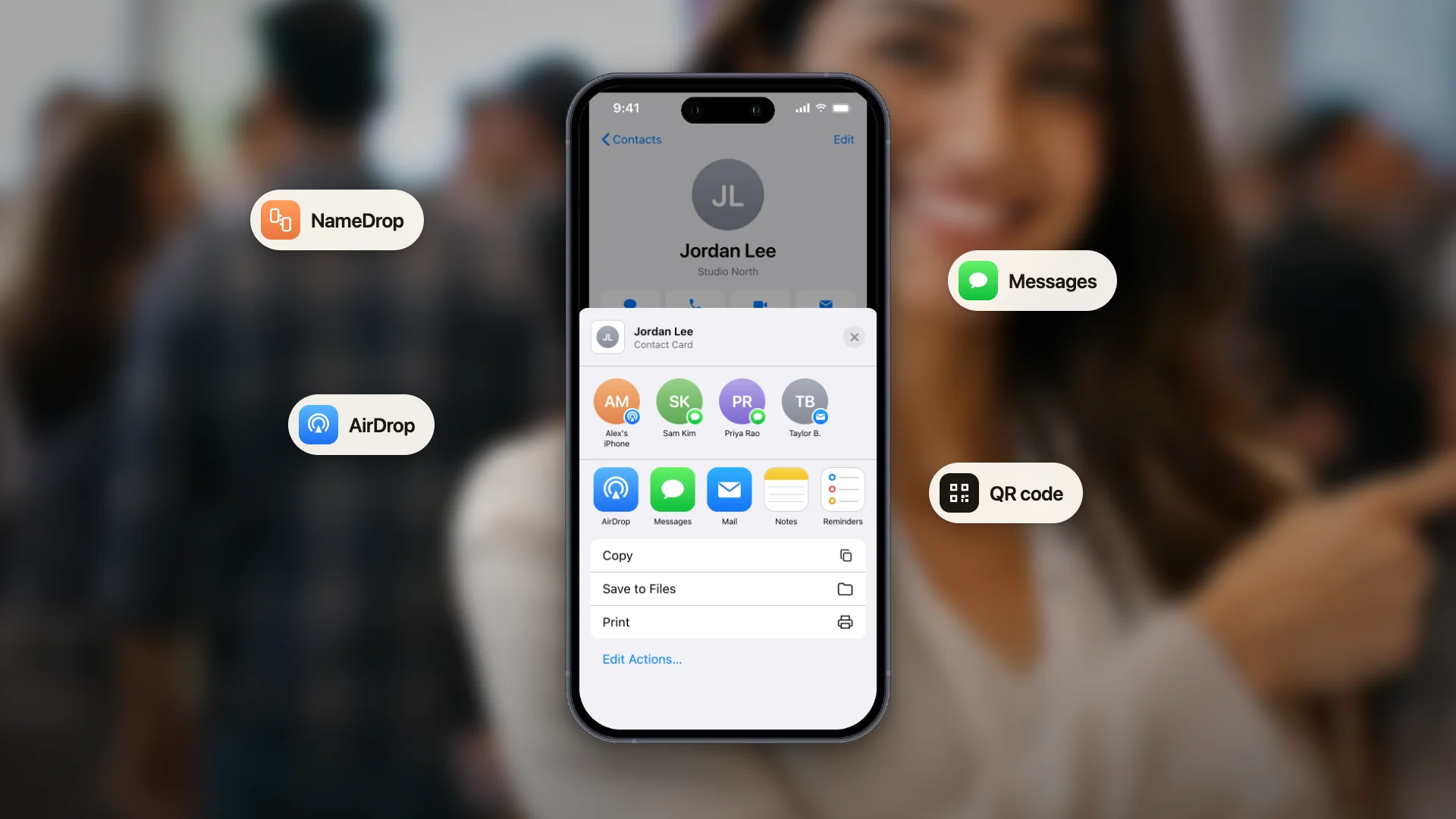
Le moyen le plus rapide de perdre un nouveau contact est de lui demander de télécharger quelque chose. Personne, debout dans le couloir d'une conférence, n'installe une application pour recevoir votre numéro de téléphone, et toute méthode de partage qui l'exige a déjà échoué.
Bonne nouvelle : aucune carte de visite numérique moderne n'en a besoin. L'application, quand elle existe, est faite pour vous, la personne qui tient la carte à jour. Du côté du destinataire, tout se passe dans l'appareil photo et le navigateur de son téléphone, qu'il possède déjà.
Voici les quatre façons de partager qui ne demandent rien à l'autre personne, quand utiliser chacune d'elles et comment gérer les situations où la méthode habituelle ne convient pas.
Aucune app des deux côtés : ce dont vous et votre interlocuteur avez besoin
« Sans app » veut dire deux choses différentes, et avec ConnectMachine les deux sont vraies.
La personne avec qui vous partagez
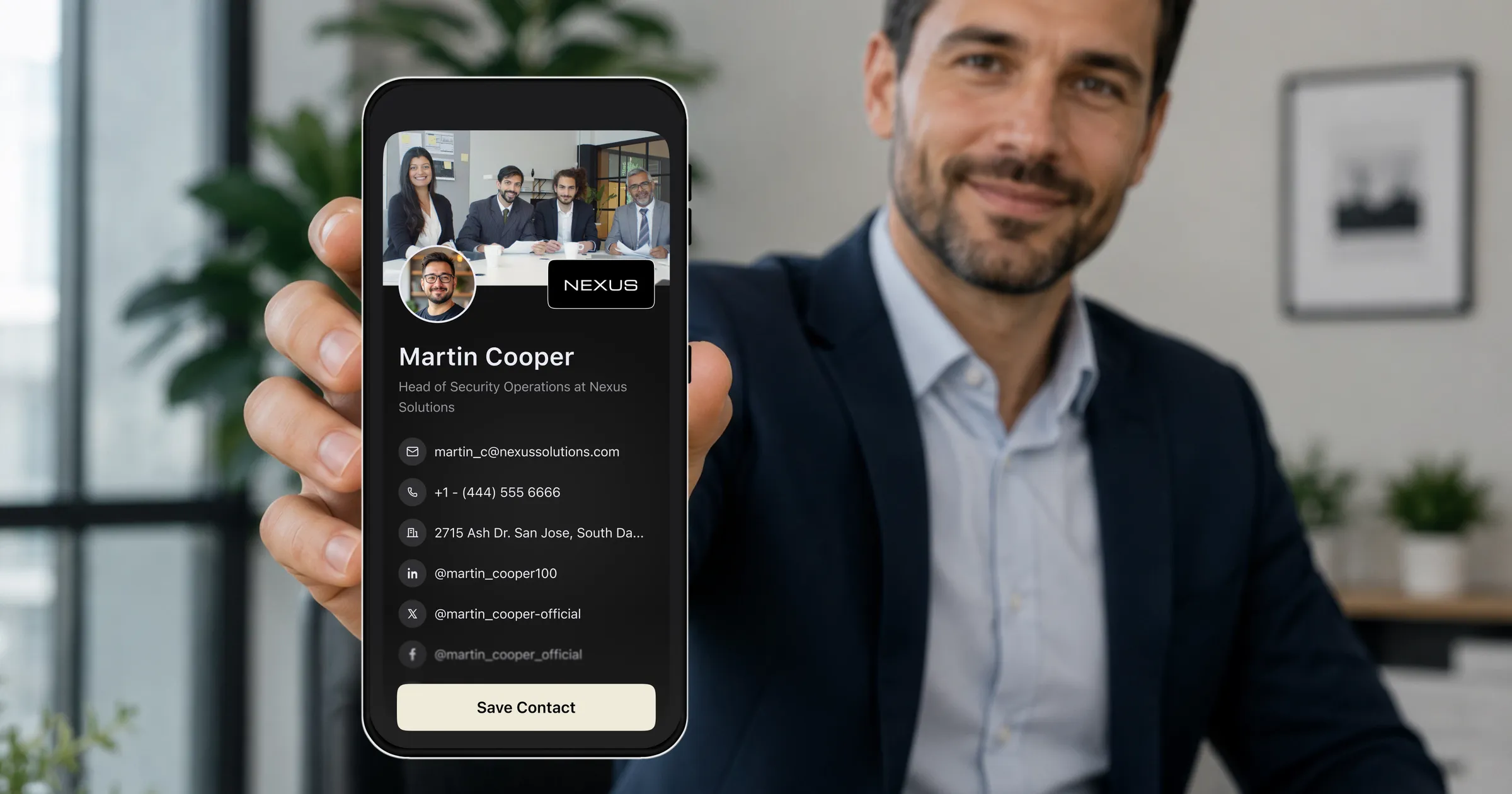
Elle n'a jamais besoin de ConnectMachine. Elle scanne votre code QR ou ouvre votre lien, votre carte s'ouvre dans le navigateur de son téléphone, et une touche sur Enregistrer le contact vous ajoute à ses contacts sur iPhone ou Android. Aucun téléchargement, aucun compte.
Vous, qui partagez
Vous n'avez pas besoin de l'app mobile pour commencer non plus. Créez votre carte dans n'importe quel navigateur avec le créateur gratuit de cartes de visite numériques, puis connectez-vous à la web app ConnectMachine pour la modifier et gérer vos contacts depuis un ordinateur portable. Les apps iPhone et Android sont là quand vous le voulez, et votre carte et vos contacts se synchronisent entre le web et le mobile.
Pour une vue d'ensemble d'une carte de visite numérique sans app, commencez par là. Le reste de ce guide explique comment faire : les quatre méthodes de partage, quand utiliser chacune, et les cas délicats.
Les quatre méthodes qui n'exigent rien du destinataire
- 1
Montrez votre code QR
L'option par défaut lors des rencontres en personne. Votre interlocuteur pointe son appareil photo vers votre écran, touche la bannière qui apparaît, et votre carte s'ouvre dans son navigateur. Tous les téléphones vendus ces dernières années le font nativement.
- 2
Envoyez le lien de votre carte
Chaque carte ConnectMachine possède une adresse web publique. Collez-la dans un message, un e-mail, une conversation LinkedIn ou le chat d'une visioconférence. C'est la méthode qui fonctionne quand vous n'êtes pas dans la même pièce.
- 3
Affichez-la depuis votre wallet
Ajoutez votre carte à Apple Wallet ou Google Wallet et votre code QR se trouve à un glissement de l'écran verrouillé, sans avoir à déverrouiller le téléphone, ouvrir une application et chercher le bon écran. C'est la version qu'il vous faut lors d'un événement chargé.
- 4
Imprimez le code QR
Votre code QR se télécharge sous forme de fichier prêt à imprimer. Placez-le sur un badge, sur la banderole d'un stand, sur une diapositive, sur un menu ou au dos des cartes papier qu'il vous reste, et laissez les gens le scanner sans que vous soyez là.
Quelle méthode utiliser et quand
Conversation en tête-à-tête
Le code QR du wallet. C'est le chemin le plus court entre la décision de partager et l'affichage du code, et la rapidité compte quand le moment est une pause naturelle plutôt qu'un échange prévu.
Stand de salon ou groupe
Un code QR imprimé sur le stand ou le badge, pour que plusieurs personnes puissent scanner en même temps sans faire la queue devant votre téléphone. Gardez le code du wallet à portée de main pour les conversations qui vont plus loin.
Visioconférence
Collez l'adresse de votre carte dans le chat pendant que vous êtes encore en train de parler. Les écrans sont déjà partagés et chacun a un clavier devant soi, ce qui en fait le moment où le taux de conversion est le plus élevé que vous obtiendrez.
E-mail et messagerie
Envoyez le lien avec une ligne de contexte expliquant pourquoi vous l'envoyez. Une adresse toute seule, venant de quelqu'un dont le nom n'est pas encore familier, ressemble à du spam.
Partage passif et continu
Placez l'adresse de votre carte dans votre signature d'e-mail et sur votre profil LinkedIn. Cela ne coûte rien et travaille pendant que vous dormez.
Ce que fait réellement le destinataire
Bon à savoir, car il vous arrivera de devoir guider quelqu'un sans avoir l'air condescendant.
- Il ouvre son appareil photo et le pointe vers le code. Pas d'application de scan et, sur la plupart des téléphones, pas de mode QR à activer.
- Une bannière ou une notification apparaît avec la destination. Il la touche.
- Votre carte s'ouvre dans son navigateur. Il voit votre nom, votre fonction, votre photo et vos coordonnées.
- Il touche enregistrer dans les contacts, et vos coordonnées sont dans son téléphone. C'est l'étape que les cartes papier n'ont jamais pu offrir.
La seule chose à dire à voix haute
Dites-lui de toucher enregistrer
Un nombre surprenant de gens scannent la carte, la regardent et rangent leur téléphone sans l'enregistrer. Une phrase, touchez enregistrer et vous m'avez dans vos contacts, transforme nettement plus de scans en contacts.
Programmez le rappel pendant que la conversation est encore fraîche.
Les cas délicats et comment les gérer
Aucun réseau sur place
Les sous-sols des centres de congrès sont réputés pour cela. Votre code QR s'affiche très bien sans connexion, puisqu'il est stocké sur votre téléphone, mais le navigateur de votre interlocuteur risque de ne pas charger votre carte tant qu'il n'a pas de réseau. Dites-lui de scanner quand même : l'onglet se chargera dès qu'il sera de nouveau en ligne.
Son téléphone est ancien ou inhabituel
Repliez-vous sur le lien. Demandez son numéro ou son e-mail et envoyez l'adresse de votre carte, qui fonctionne sur tout ce qui a un navigateur. Si même cela échoue, prenez plutôt ses coordonnées et relancez-le vous-même.
Sa batterie est vide
Prenez sa carte ou ses coordonnées et envoyez les vôtres plus tard dans la journée. C'est le seul cas de figure où une carte papier au fond de votre poche justifie sa place.
C'est vous qui n'avez pas votre téléphone en main
L'adresse de votre carte est assez courte pour être dictée à voix haute ou notée sur un papier, et c'est tout l'intérêt d'avoir une adresse web publique plutôt qu'un code qui n'existe qu'à l'intérieur d'une application.
L'essentiel
Partager sans application n'est pas un contournement, c'est ainsi que les cartes de visite numériques sont censées fonctionner. Le destinataire utilise un appareil photo et un navigateur qu'il possède déjà, et vos coordonnées finissent enregistrées dans son téléphone au lieu de survivre au fond d'une poche de veste.
Configurez le pass dans le wallet, gardez l'adresse de votre carte quelque part où vous pouvez la coller rapidement, et téléchargez une bonne fois le QR imprimable (le générateur gratuit de QR code vCard en crée un sans compte). Ensuite, chaque échange se résume à un glissement ou à un collage.