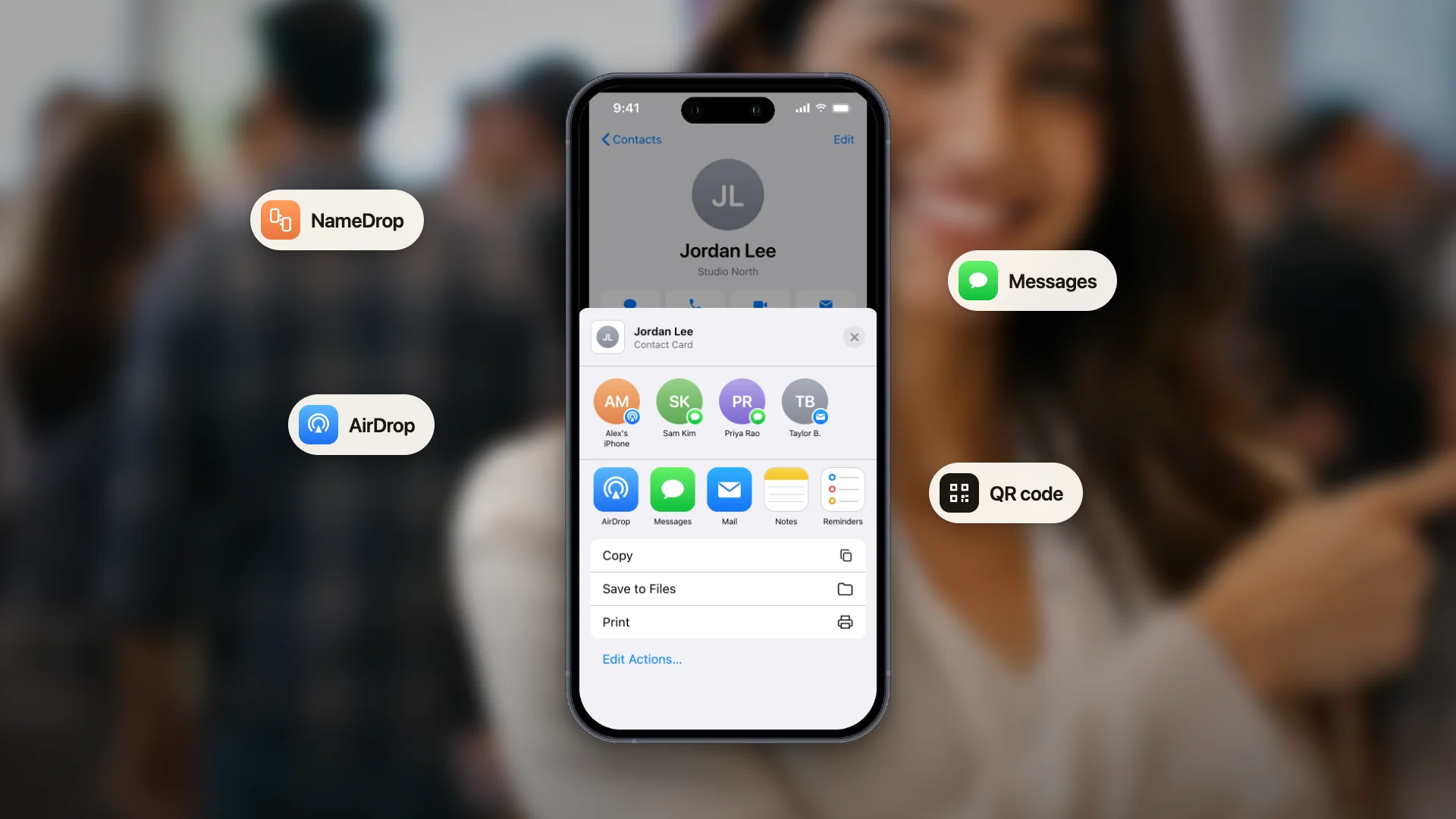

La forma más rápida de perder un contacto nuevo es pedirle que descargue algo. Nadie que esté de pie en el pasillo de un congreso va a instalar una app para recibir su número de teléfono, y cualquier método de intercambio que lo exija ya ha fracasado.
La buena noticia: ninguna tarjeta de presentación digital moderna la necesita. La app, si existe, es para usted, la persona que mantiene la tarjeta. Todo lo que ocurre del lado del destinatario sucede en la cámara y el navegador de su teléfono, que ya tiene.
Estas son las cuatro formas de compartir que no le piden nada a la otra persona, cuándo usar cada una y cómo resolver las situaciones en las que el método habitual no encaja.
Sin app en ningún lado: lo que necesita usted y lo que necesita el destinatario
«Sin app» significa dos cosas distintas, y con ConnectMachine ambas se cumplen.
La persona con quien comparte
Nunca necesita ConnectMachine. Escanea su código QR o abre su enlace, su tarjeta se abre en el navegador del teléfono y un toque en Guardar contacto le añade a sus contactos en iPhone o Android. Sin descargas, sin cuenta.
Usted, quien comparte
Tampoco necesita la app del teléfono para empezar. Cree su tarjeta en cualquier navegador con el creador gratuito de tarjetas de visita digitales y luego inicie sesión en la app web de ConnectMachine para editarla y gestionar sus contactos desde un portátil. Las apps de iPhone y Android están ahí cuando las quiera, y su tarjeta y sus contactos se sincronizan entre la web y el móvil.
Para ver el panorama general de una tarjeta de visita digital que no necesita app, empiece por ahí. El resto de esta guía es el cómo: los cuatro métodos para compartir, cuándo usar cada uno y los casos incómodos.
Las cuatro formas que no exigen nada al destinatario
- 1
Muestre su código QR
La opción por defecto en las reuniones presenciales. La otra persona apunta la cámara a su pantalla, toca el aviso que aparece y su tarjeta se abre en su navegador. Todos los teléfonos vendidos en los últimos años lo hacen de forma nativa.
- 2
Envíe el enlace de su tarjeta
Cada tarjeta de ConnectMachine tiene una URL pública para navegador. Péguela en un mensaje, un correo, un chat de LinkedIn o el chat de una videollamada. Este es el método que funciona cuando no están en la misma sala.
- 3
Muéstrela desde su wallet
Añada su tarjeta a Apple Wallet o Google Wallet y su código QR quedará a un deslizamiento de la pantalla de bloqueo, sin tener que desbloquear el teléfono, abrir una app y buscar la pantalla correcta. Esta es la versión que querrá tener en un evento concurrido.
- 4
Imprima el código QR
Su código QR se descarga como un archivo listo para imprimir. Póngalo en una acreditación, en el cartel de un estand, en una diapositiva, en una carta de menú o en el reverso de las tarjetas de papel que le queden, y deje que la gente lo escanee sin que usted esté presente.
Qué método usar en cada situación
Conversación cara a cara
El código QR del wallet. Es el camino más rápido desde que decide compartir hasta que el código está a la vista, y la velocidad importa cuando el momento es una pausa natural y no un intercambio planificado.
Estand de congreso o grupo
Código QR impreso en el estand o en la acreditación, para que varias personas puedan escanear a la vez sin hacer cola ante su teléfono. Mantenga el código del wallet a mano para las conversaciones que vayan más a fondo.
Videollamada
Pegue la URL de su tarjeta en el chat mientras todavía están hablando. Las pantallas ya están compartidas y todo el mundo tiene un teclado delante, lo que convierte este en el momento de mayor conversión que va a tener.
Correo y mensajería
Envíe el enlace con una línea de contexto sobre por qué lo manda. Una URL suelta de alguien cuyo nombre todavía no resulta familiar parece spam.
Compartir de forma pasiva y continua
Ponga la URL de su tarjeta en la firma de su correo y en su perfil de LinkedIn. No cuesta nada y trabaja mientras usted duerme.
Qué hace realmente el destinatario
Conviene saberlo, porque de vez en cuando tendrá que guiar a alguien sin sonar condescendiente.
- Abre la app de cámara y la apunta al código. Sin app de escaneo y, en la mayoría de los teléfonos, sin modo QR.
- Aparece un aviso o una notificación con el destino. Lo toca.
- Su tarjeta se abre en su navegador. Ve su nombre, su cargo, su foto y sus datos.
- Toca guardar en contactos y sus datos quedan en su teléfono. Este es el paso que las tarjetas de papel nunca pudieron dar.
Lo único que hay que decir en voz alta
Pídale que toque guardar
Un número sorprendente de personas escanea la tarjeta, la mira y guarda el teléfono sin guardarla. Una frase, toque guardar y ya tiene mis datos, convierte bastantes más escaneos en contactos.
Configura el recordatorio mientras la conversación aún está reciente.
Los casos incómodos y cómo resolverlos
No hay cobertura en el recinto
Los sótanos de los palacios de congresos son famosos por esto. Su código QR se muestra sin problema aunque no haya conexión, porque está guardado en su teléfono, pero puede que el navegador de la otra persona no cargue su tarjeta hasta que tenga cobertura. Dígale que escanee igualmente: la pestaña se cargará cuando vuelva a estar en línea.
Su teléfono es antiguo o poco común
Recurra al enlace. Pídale su número o su correo y envíele la URL de la tarjeta, que funciona en cualquier cosa con navegador. Si ni siquiera eso funciona, apunte sus datos y haga usted el seguimiento.
Se le ha agotado la batería
Quédese con su tarjeta o con sus datos y envíe los suyos más tarde, el mismo día. Este es el único escenario en el que una tarjeta de papel en el bolsillo se gana su sitio.
El que no tiene el teléfono a mano es usted
La URL de su tarjeta es lo bastante corta como para decirla en voz alta o apuntarla, que es justo el sentido de tener una URL pública de navegador en lugar de un código que solo existe dentro de una app.
En resumen
Compartir sin app no es un apaño, es como se supone que deben funcionar las tarjetas de presentación digitales. El destinatario usa una cámara y un navegador que ya tiene, y sus datos acaban guardados en su teléfono en lugar de sobrevivir en el bolsillo de una chaqueta.
Configure el pase del wallet, guarde la URL de su tarjeta en un sitio desde donde pueda pegarla rápido y descargue una vez el QR imprimible (el generador gratuito de códigos QR vCard crea uno sin cuenta). A partir de ahí, cada intercambio se reduce a deslizar o pegar.