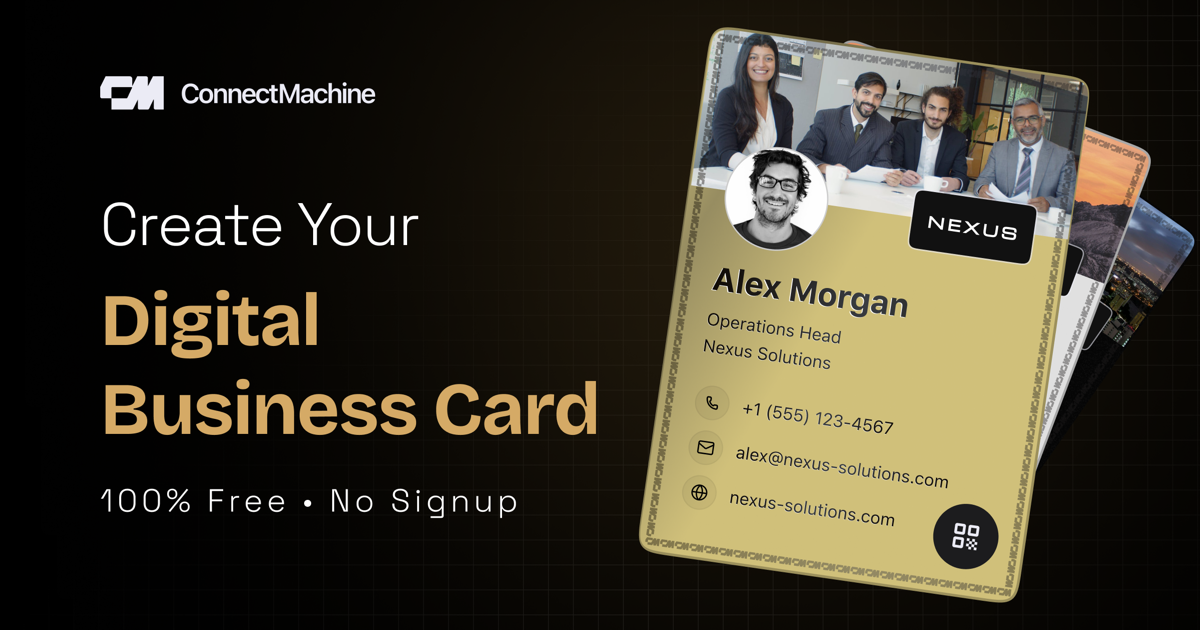
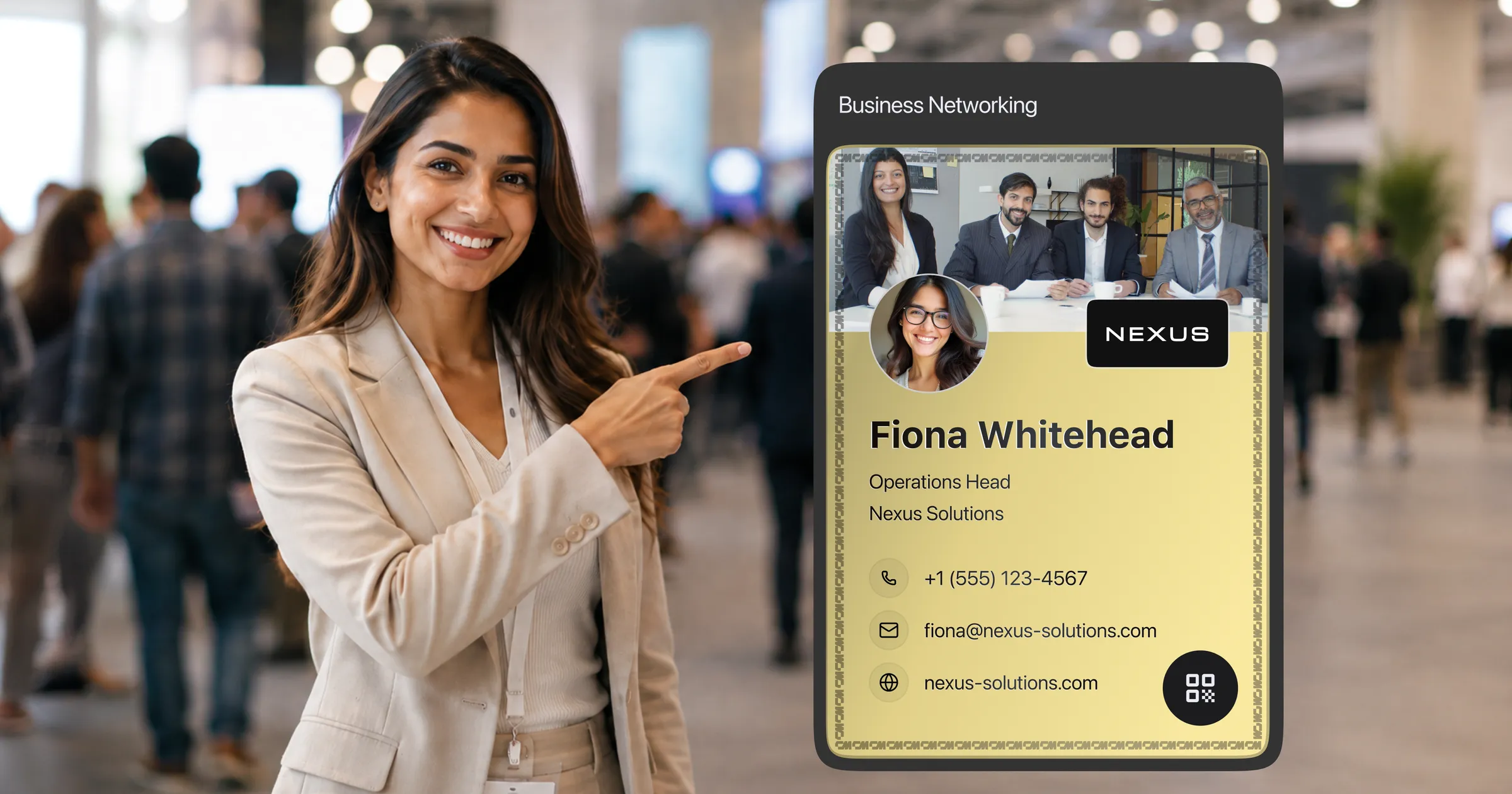
Сделать цифровую визитку действительно быстро: откройте конструктор визиток в браузере или приложение на телефоне, заполните свои данные и покажите QR-код. Большинство укладывается примерно в три минуты, а бесплатного тарифа хватает на всё, что нужно для старта.
Замедлиться стоит не на самой настройке, а на нескольких решениях внутри неё. Какие контакты вы указываете, как выглядит визитка в первые две секунды после сканирования и готова ли она на самом деле, когда понадобится на мероприятии. Именно эти решения отличают визитку, которую сохраняют, от визитки, которую закрывают.
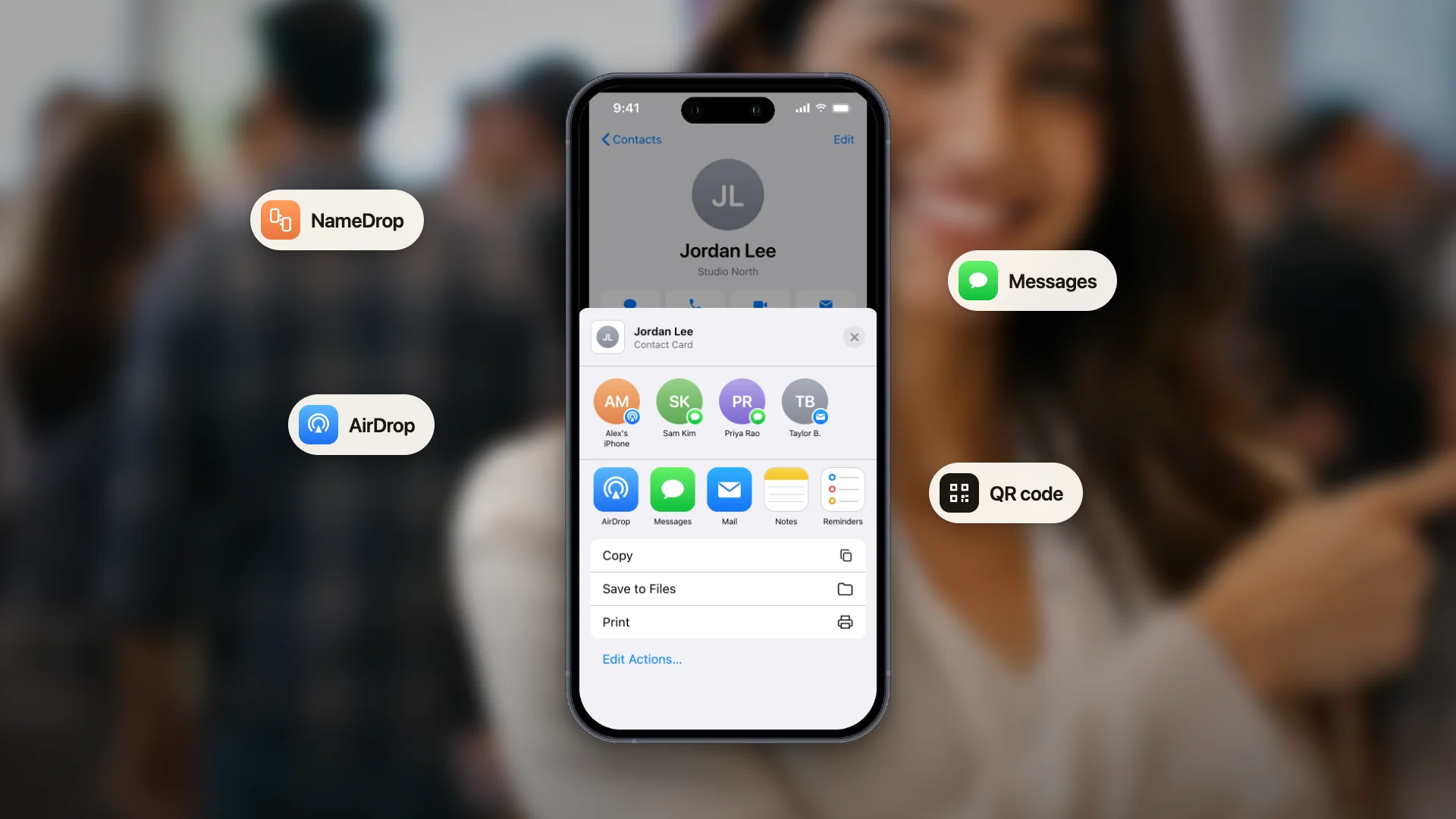
В этом руководстве разобраны пять шагов, а затем детали настройки, благодаря которым визитка работает на практике: карта в Wallet, QR-код, готовый к печати, и отдельные визитки для разных ситуаций.
Сначала подготовьте три вещи
Визитку можно создать, указав одно лишь имя, но две минуты подготовки заметно улучшают результат.
- Ваша фотография. Чёткий портрет при хорошем свете работает лучше логотипа для большинства людей: собеседник запоминает лицо из разговора, который только что состоялся.
- Ваши контакты, выбранные осознанно. Какая почта, какой номер телефона и стоит ли вообще указывать мобильный.
- Одна самая важная ссылка. Обычно это LinkedIn, портфолио, страница записи на встречу или сайт компании. Выберите ту, которую человек, по-вашему, должен открыть первой.
Пять шагов
- 1
Начните в браузере или на телефоне
Откройте бесплатный конструктор цифровых визиток в любом браузере или установите приложение ConnectMachine на iPhone или Android. Конструктор показывает живой предпросмотр и сразу выдаёт ссылку и QR-код. Чтобы потом редактировать визитку, зарегистрируйте бесплатный аккаунт с той же почтой или номером телефона. Визитки и контакты синхронизируются между веб-приложением и мобильным приложением.
- 2
Заполните свои данные
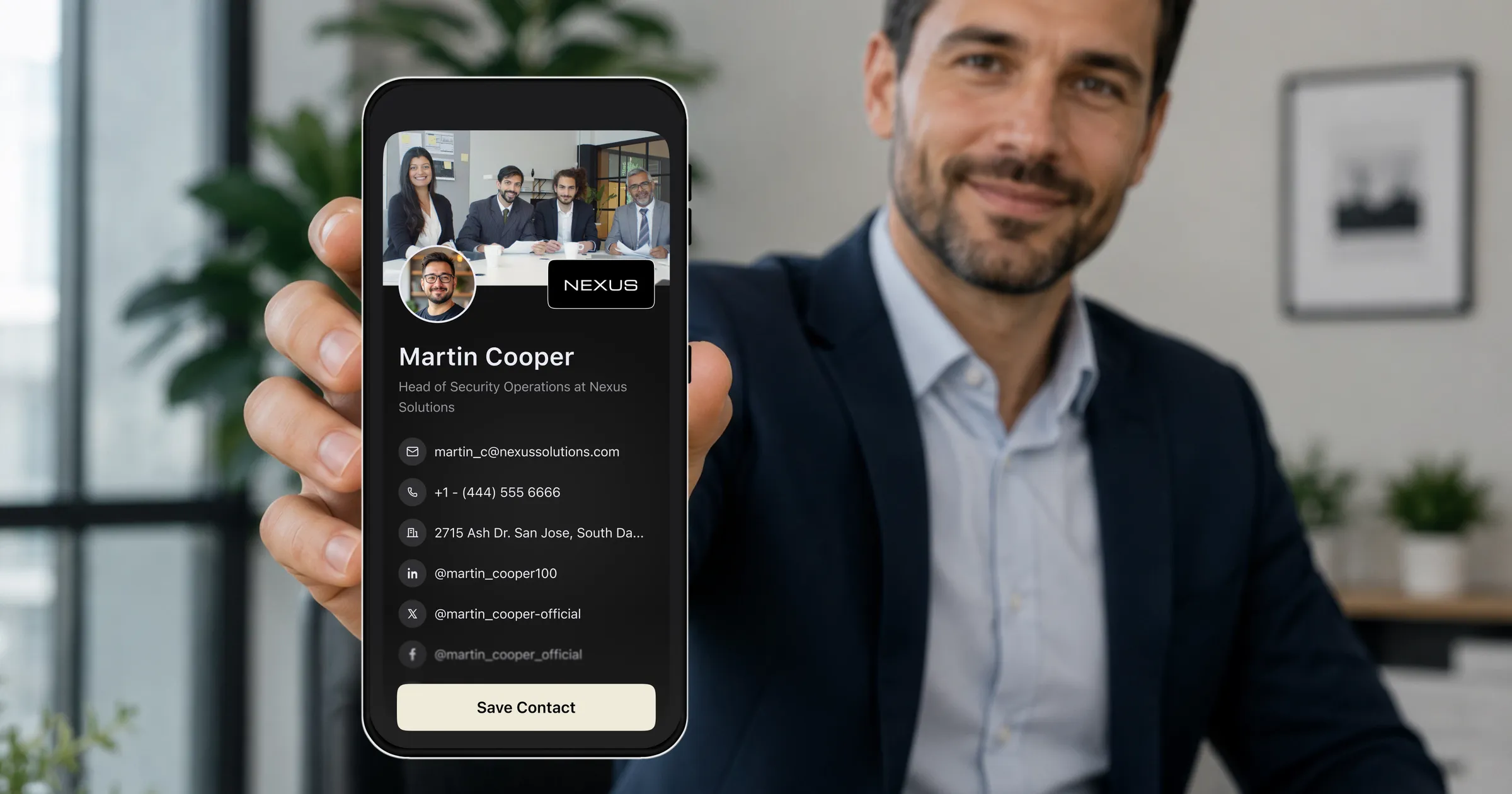
Имя, должность, компания и выбранные способы связи. Добавьте фотографию. Если ваша профессия связана с допусками, укажите здесь данные лицензии или сертификата: именно это новый контакт чаще всего хочет проверить первым.
- 3
Добавьте ссылки
LinkedIn, ваш сайт, ссылка на запись, если вы проводите встречи, и ссылка на отзывы, если бизнес держится на рекомендациях. Держите список достаточно коротким, чтобы главная ссылка бросалась в глаза.
- 4
Приведите визитку к своему бренду
Выберите цветовую тему и добавьте обложку или логотип компании. В Premium есть шаблоны визиток, фирменные шрифты и собственный баннер, если вы представляете компанию. Минута здесь отличает современный вид от вида шаблона по умолчанию.
- 5
Поделитесь визиткой и проверьте её
Покажите QR-код коллеге и попросите отсканировать. Посмотрите, что он видит, убедитесь, что сохранение в контакты работает, и исправьте всё, что неудачно читается на его экране, а не на вашем.
Не пропускайте пятый шаг
Отсканируйте свою визитку до того, как она понадобится
Важен только тот вид, который видит получатель, и именно на него создатели никогда не смотрят. Две минуты проверки избавят от сломанной ссылки, обнаруженной в разгар конференции.
Установите напоминание, пока разговор еще свеж в памяти.
Сделайте несколько визиток, если ситуации разные
Один аккаунт ConnectMachine может хранить несколько визиток, и это полезнее, чем кажется поначалу. Данные, которые вы готовы дать незнакомому человеку на конференции, не всегда те же, что вы даёте давнему клиенту.
- Рабочая визитка с должностью, компанией, рабочей почтой и ссылкой на запись.
- Визитка для мероприятий, которая начинается с того, что вы ищете, а не с вашей должности.
- Визитка для личного проекта или просто личная, со ссылками, которые никак не связаны с основной работой.
- Клиентская визитка с прямым номером, который вы не дали бы залу незнакомых людей.
Настройте их один раз и выбирайте нужную по ситуации. Это не дольше, чем сделать вторую версию чего угодно другого.
Ошибки, из-за которых визитки игнорируют
Слишком много ссылок
Двенадцать ссылок это не двенадцать шансов на контакт, а решение, которое вы переложили на человека, знакомого с вами четыре минуты. Начните с одной.
Нет фотографии
На мероприятии, где человек знакомится с двадцатью людьми, ваше лицо это ключ, по которому вспоминается весь разговор. Для отдельного человека логотип такую задачу не решает.
Расплывчатая должность
Остроумные названия должностей не выдерживают чтения незнакомым человеком вне контекста. Напишите, чем вы на самом деле занимаетесь, а характер оставьте для разговора.
Показываете её слишком поздно
QR-код, показанный уже на ходу, сканируют примерно в половине случаев. Показывайте его в естественной паузе в разговоре, пока причина обменяться контактами ещё не остыла.
Итог
Три минуты дают работающую цифровую визитку. Пять дают такую, которая лежит в Wallet, стоит в вашем профиле LinkedIn, готова к печати и проверена с другой стороны. Эти две дополнительные минуты и есть вся разница, и тратите вы их один раз.