
Make a Professional Virtual Background for Zoom, Microsoft Teams, and Google Meet
Pick a background, add your name and a QR code, and download a 1920 x 1080 image that works in Zoom, Microsoft Teams and Google Meet. Free, no signup.

A Zoom virtual background is an image Zoom shows behind you on a call, in place of whatever is really in the room. It should be 1920 x 1080 pixels in a 16:9 aspect ratio, saved as a JPG or PNG. Pick one below, add your name and job title, and download it free.
Most background galleries hand you a picture and stop there. This one puts your name, your company and a QR code onto the image, so anyone on the call can scan it and save your contact details without typing a thing or asking you to spell your surname.
How to make a Zoom virtual background
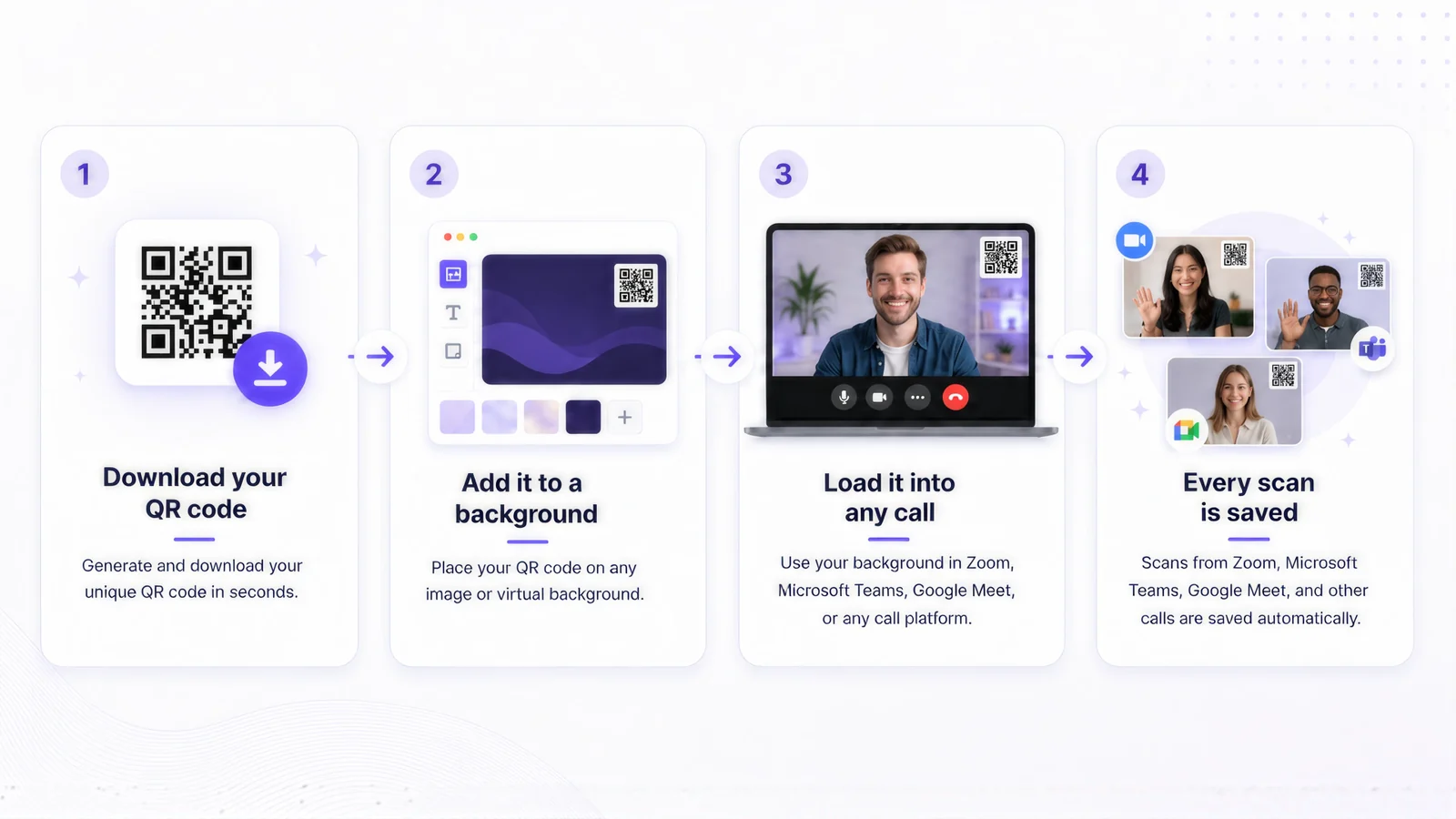
- Pick a background. Sixteen ready backgrounds are built in, from plain office walls to a home office by a window. Or upload a photo of your own.
- Add your details. Your name, job title and company can sit on the image, and the QR code carries your full contact details behind them.
- Place the code. Choose a corner and a size. Top right is the safest on a laptop, because that corner stays clear of your head and shoulders in most seating positions.
- Download the file. You get a 1920 x 1080 PNG, the size Zoom, Microsoft Teams and Google Meet all ask for. No signup and no watermark.
Free Zoom backgrounds to start from
Sixteen backgrounds are built in and free to use: office walls, a home office by a window, a meeting room, a few plain studio colours, and some illustrated ones for the calls where a bookshelf would be too much. Every one exports at 1920 x 1080.
An office background is the safe choice for client calls and interviews, because it reads as a room rather than as a picture of a room. If you would rather use your own, upload any photo and the tool composites your details onto it.
-
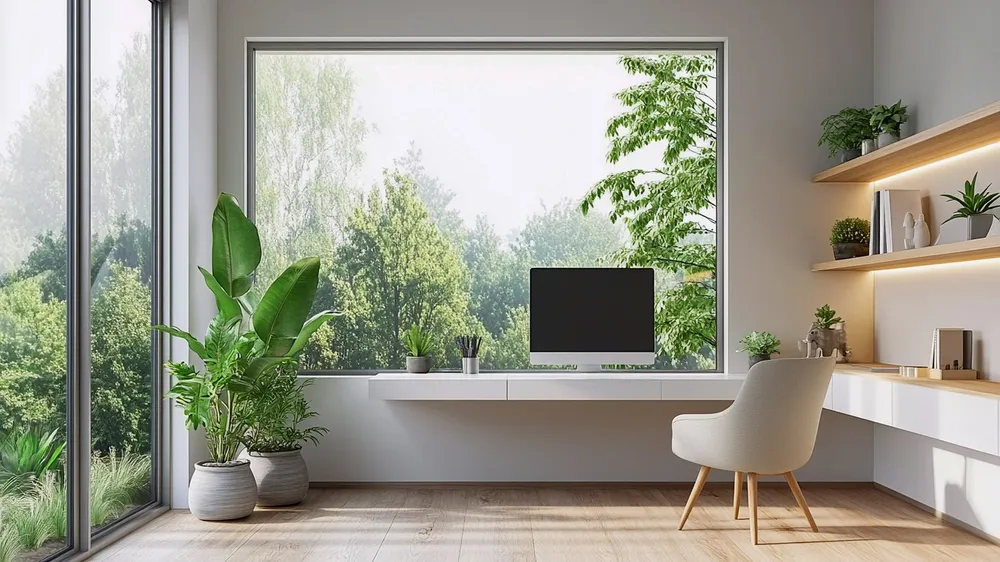
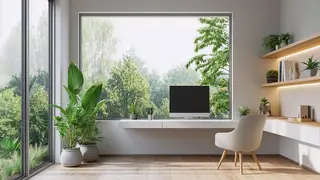 Home office by a window
 -
 City office desk
 -
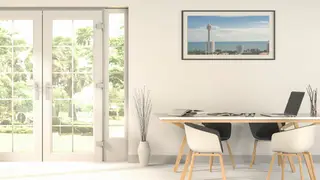 Meeting room by the garden
 -
 Office lounge
 -
 Skyline lounge
 -
 Sunlit conservatory
 -
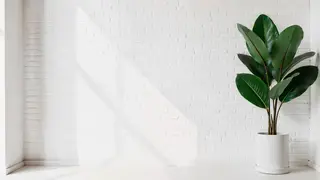 White brick and plant
 -
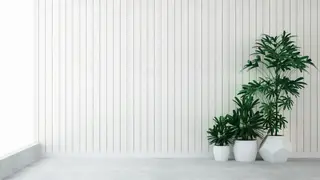 Panelled wall with palms
 -
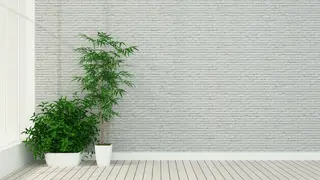 Brick terrace
 -
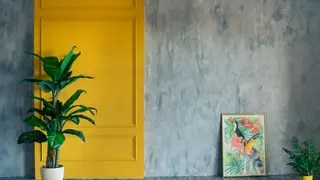 Yellow wall studio
 -
 Painted wall with palm
 -
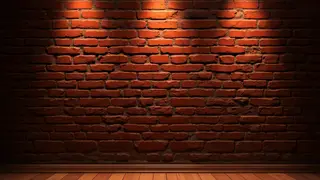 Brick wall with spotlights
 -
 Gradient studio
 -
 Meadow with a rainbow
 -
 Autumn leaves
 -
 Illustrated meadow
How to change your background on Zoom
Zoom puts the same panel behind three different doors depending on where you are when you go looking for it.
- On the Zoom desktop app. Click your profile picture, then Settings, then Background and Effects. Hover the thumbnail row, click the plus icon, choose Add Image, and pick your 1920 x 1080 file. It applies straight away and stays selected for your next call.
- While you are already in a meeting. Click the caret next to the Stop Video button in the meeting controls, then Choose Virtual Background. The same panel opens without leaving the call.
- On the Zoom mobile app. Join the meeting, tap More in the bottom bar, then Background and Effects, then the plus tile to upload your image from your camera roll.
- If you cannot find the setting. Virtual Background is a per-account setting as well as a per-device one. Sign in at the Zoom web portal, open Settings, then Meeting, and switch Virtual Background on there. Older machines that fail the hardware requirement need a physical green screen instead.
One quirk catches people out. Your self-view is mirrored by default, so anything with text or a QR code on it looks reversed to you while appearing correct to everyone else. Do not flip the image to fix what you see on your own screen, because that breaks it for the people who need to read it.
Zoom background size and dimensions
A Zoom virtual background should be 1920 x 1080 pixels in a 16:9 aspect ratio, saved as a JPG, PNG or GIF. The same dimensions are what Microsoft Teams and Google Meet expect, so one file covers every platform you use.
- 1920 x 1080 pixels.
- This is what Zoom recommends and what this tool exports. Microsoft Teams and Google Meet want the same file, so one export covers all three.
- A 16:9 aspect ratio.
- Zoom crops anything that is not 16:9 to fit, from the centre outwards, which is how a logo in a corner quietly disappears.
- 1280 x 720 is the floor.
- Below that the image is stretched to fill the frame and looks soft, which is the usual reason a background that looked fine on your screen looks blurry to everyone else.
- JPG, PNG or GIF.
- PNG holds edges and small text more cleanly than JPG, which matters when a QR code is sitting in the corner. Keep the file to a normal photo size; there is nothing to gain from a 20 MB export.
Everything this tool exports is already 1920 x 1080, so if you start here the sizing question does not come up.
How to change your background in Microsoft Teams
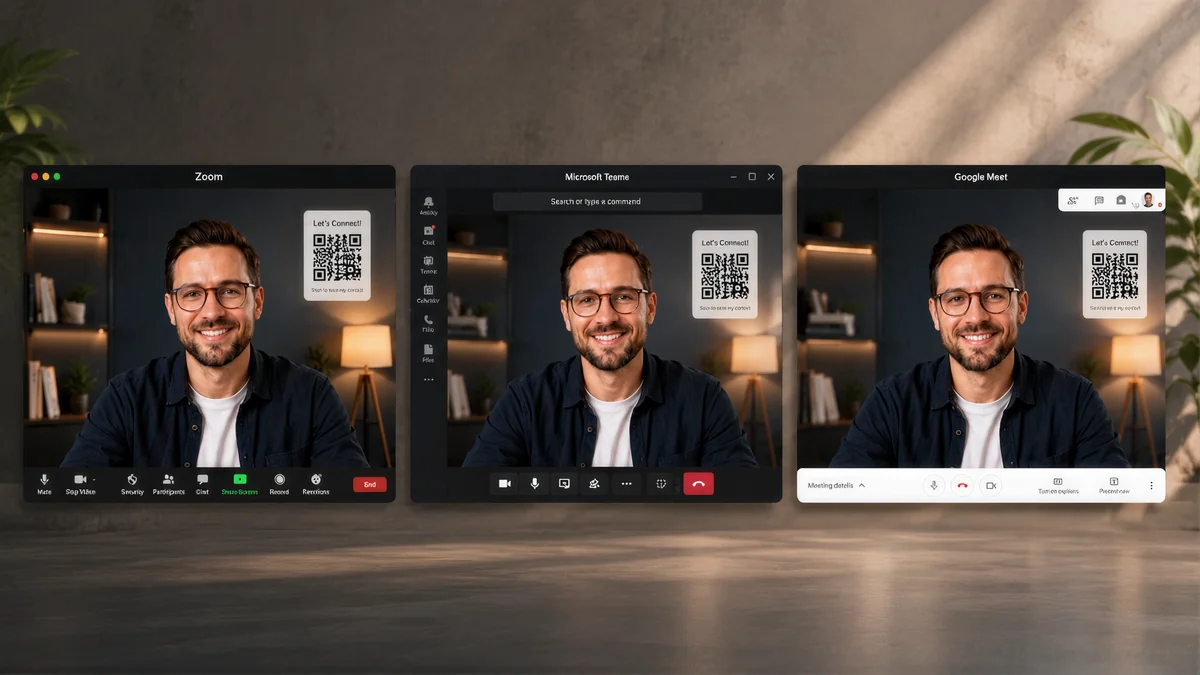
Teams takes the same 1920 x 1080 file and offers two ways in, one before the call and one during it.
- Before you join. On the pre-join screen, choose Background filters, then Add new, and pick your file. Teams shows you the result in the preview tile before anyone sees it.
- During the meeting. Open More in the meeting controls, then Effects and avatars, then Add new. Teams applies it to the call you are in and remembers it for the next one.
An uploaded Teams background stays in your list until you remove it, so a branded one is a thing you set once a year rather than before every meeting.
How to change your background in Google Meet
Google Meet calls them visual effects rather than backgrounds, which is the main reason people cannot find the setting.
- On a computer. Open the three-dot menu in the meeting, choose Apply visual effects, then the plus icon at the top of the effects panel to upload your image.
- On a phone. Tap the screen, then the three-dot menu, then Effects. Google Meet on mobile allows uploads on most recent devices; on older ones you are limited to the built-in set.
Meet is the strictest of the three about older machines. If the effects panel is missing entirely, the browser tab is usually the problem: use Chrome, and close the other twenty tabs first.
Professional Zoom backgrounds that do not look fake
A background looks fake for reasons that have very little to do with the picture itself. Four of them cover almost every case.
- Choose a plain background over a dramatic one.
- A painted wall, a shelf, or an office corner reads as real. A cathedral, a beach, or anything with depth behind you gives the segmentation edge too much to get wrong, and the mismatch is what makes a background look pasted on.
- Match the light to your room.
- If your face is lit from a window on your left, a background lit from the right looks wrong before anyone can say why. Pick a background whose light falls the same way yours does.
- Put something plain behind your actual head.
- Zoom separates you from your room by contrast. A busy or dark real wall behind you, or a shirt close to your wall colour, is what produces the flickering halo around your shoulders.
- Test it before the meeting that matters.
- Start a meeting with yourself and watch your own tile for thirty seconds while you move normally. Most background problems are only visible when you turn your head.
For interviews and first client calls, the plainest office background in the library beats the most impressive one. Nobody has ever been talked out of a deal by a wall.
Zoom background with your logo and QR code
This is the part a background gallery cannot do for you. Upload a background that already carries your logo, or start from one of the plain ones, then switch on your name, job title and company and place a QR code in a corner. The export is a single 1920 x 1080 image with all of it baked in.
The QR code is the part that earns its place. On a call, your details are trapped behind whoever is willing to type them out of the chat. A code on your background turns that into one scan, and because it points to your live card rather than storing fixed text, a new job title does not mean a new background.
Two rules worth stating plainly, because the tool lets you break them:
- Keep the code dark on a light background.
- Scanners look for dark modules against light, and inverting that combination fails on many phones even when the contrast looks strong to your eye.
- Avoid gradient theme colours on anything that will be printed small or shown on a video call.
- A solid dark colour survives compression and cheap ink. A gradient often does not.
Making the QR code scannable on a video call
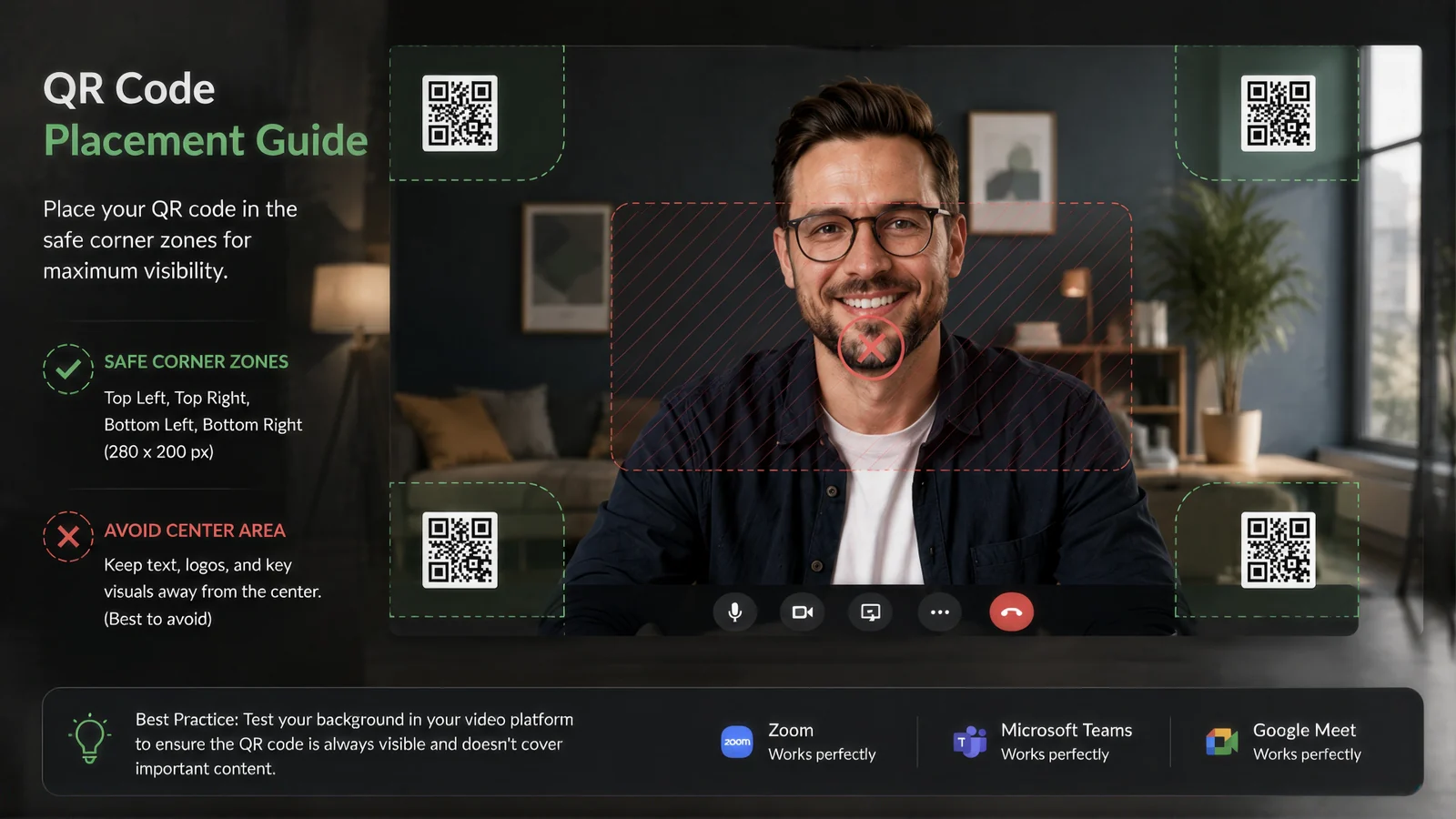
- Size it for a laptop, not a wall.
- Your video tile may be a small rectangle in a grid. Medium works for most calls; choose Large if you present to big meetings where everyone is in gallery view.
- Stay out of the segmentation edge.
- Platforms cut you out of your real background in real time and that boundary is imprecise. A code near where your shoulder or hand passes will flicker in and out.
- Keep contrast high and colour simple.
- A dark code on a light panel survives compression best. If your chosen background is a photograph, keep the white panel behind the code rather than placing the code directly on the image.
- Test at the bandwidth you actually have.
- A code that scans on home fibre can fall apart on a hotel connection, because platforms drop resolution before they drop the call.
Know when someone scans your code
Most QR generators end at the download. Yours does not.
When somebody scans your code, ConnectMachine notifies you and records the connection. Their details land in your contact manager rather than disappearing into a browser visit you never hear about. You can add a note about what the conversation was actually about, and later ask in plain language who you met and why it mattered.
Across a week of calls that difference compounds. Twenty scans is twenty contacts you can search, tag and follow up, not twenty anonymous page views.
Download the ConnectMachine app to see scans as they happen and share back your own details.


Where else to put your QR code
- On a printed business card, at 2 cm or larger
- In your email signature, so every message carries it
- On a conference badge or lanyard insert
- On the closing slide of a deck, where it doubles as a contact slide
- On your meeting background, per the section above
The signature is the one most people skip. Our free email signature generator puts the same code under every message you send, and the digital business card behind it is what the code opens. If you are wondering whether any of this is safe to hand to a stranger, we wrote about what a QR code business card can and cannot expose.
Frequently asked questions
Quick answers on sizes, green screens, and getting a background into Zoom, Teams and Meet.
