



How to scan a business card with your phone (the 2026 guide)
A practical guide to choosing a scanner, using iPhone Live Text or Google Lens, improving OCR accuracy, and turning paper cards into searchable contacts.
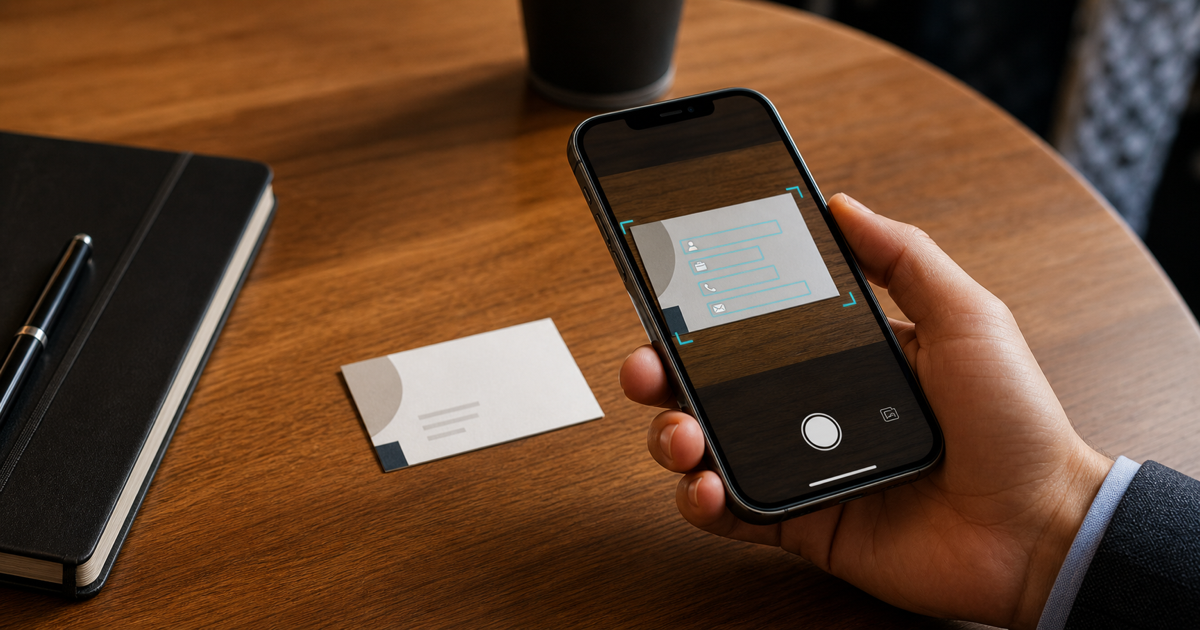
Business cards are still exchanged at trade shows, conferences, meetings, and networking events. But paper cards have a fatal flaw: they end up in drawers, wallets, or the trash within weeks. Scanning them turns disposable paper into permanent, searchable digital contacts. This guide covers exactly how to do it on both iPhone and Android.
Why scan business cards at all
Three practical reasons make scanning better than keeping a stack of paper cards.
Paper gets lost
More than 60% of collected business cards end up misplaced within a month.
Manual data entry is slow
Typing a full contact takes 2-3 minutes; scanning takes about 5 seconds.
Scanned contacts are searchable
You can find someone by company, industry, or event later.
Method 1: Using a dedicated scanner app (recommended)
Best apps for scanning business cards
Several apps specialize in business card scanning with AI-powered OCR (optical character recognition) that extracts name, company, title, email, phone, and address automatically. ConnectMachine combines scanning with a full AI-powered networking platform. CamCard focuses on scanning with 17-language OCR support. HiHello combines scanning with basic contact management, while ABBYY Business Card Reader is a highly accurate scanning-only option.
The steps are similar across scanner apps:
1. Open the scanner
Open the app and tap the scan button, usually shown as a camera icon.
2. Point your camera at the card
Ensure the card has good lighting and hold your phone steady.
3. Let AI extract the fields
The app captures the image and processes it with AI. Fields usually extract automatically within 2-3 seconds.
4. Review the result
Fix any errors. OCR is not perfect for handwritten text, decorative fonts, or low-contrast cards.
5. Save the contact
The contact is now searchable in your app's contact database.
Method 2: Using iPhone's built-in camera (Live Text)
iPhone (iOS 15+) has a Live Text feature that lets you extract text from any image without a separate app. It is not as fast or automatic as a dedicated scanner app, but it works if you only occasionally scan cards.
1. Open the Camera app
Point the camera at the business card.
2. Tap the Live Text icon
The icon appears in the bottom-right corner and looks like text lines inside a bracket.
3. Select the information
Tap and hold the phone number, email, or address you want to extract.
4. Save it
Use the 'Add to Contacts' or 'Copy' option to save the information.
Live Text is useful for grabbing one piece of information quickly. It is less useful for saving full contacts because you still have to assemble the name, company, title, phone, email, and address in a new contact.
Method 3: Using Google Lens (Android)
Google Lens is Android's equivalent to iPhone Live Text: it extracts text from any image.
1. Open Google Lens
Open Lens directly, or open the Google app or Assistant and tap the Lens icon.
2. Point at the card
Hold the phone steady with the business card clearly in frame.
3. Select the text
Tap the information you want to extract.
4. Save it
Use 'Add to Contacts' or 'Copy'.
Google Lens has the same limitations as iPhone Live Text: it works for one piece of information at a time, not for saving full contacts efficiently.
Which method is best
If you scan more than five cards per month, use a dedicated app such as ConnectMachine or CamCard. The time savings and accuracy are worth it.
If you scan very rarely, iPhone Live Text or Google Lens work for occasional use.
If you are a professional networker in sales, events, real estate, or recruiting, a dedicated app is essential. You will scan hundreds of cards per year, and the alternative becomes unmanageable.
Tips for accurate scanning
Lighting
Good, even lighting matters most. Avoid direct overhead light that creates glare. Natural daylight or diffused indoor light works best. If lighting is poor, use the scanner app's flash only as a last resort because it can create harsh shadows.
Background
Place the card on a contrasting background: a dark card on a light surface, or vice versa. Avoid busy patterns or reflective surfaces behind the card.
Card position
Lay the card flat and hold the phone parallel above it. Avoid angled shots because OCR accuracy drops when the card is skewed in the image.
Handling difficult cards
Decorative fonts, low-contrast designs, foreign-language text, and handwritten additions can all challenge OCR. Expect to correct some fields manually, and use an app that preserves the original card image so you can cross-check it.
What to do after scanning
Scanning is only the beginning. What you do next determines whether that contact becomes a real relationship or just data in a database.
Capture the context
Add a voice note with your first impression while it is fresh, then tag the contact with the event where you met.
Plan the follow-up
Set a follow-up reminder and send an email within the first 24-48 hours.
Keep your systems in sync
Sync the contact to your CRM if you use one, such as Salesforce or HubSpot.
Privacy considerations
Business cards are given voluntarily, so scanning them is generally accepted. Still, be mindful of where the scanned data is stored, whether the app shares data with third parties, whether other users can search the contacts you scan, and your obligations under GDPR, CCPA, or other privacy laws.
Choose scanner apps with clear privacy policies. ConnectMachine keeps scanned contacts private to your account only, with no public feed and no data sharing.
Frequently asked questions
What's the most accurate business card scanner app?
Is there a free business card scanner?
Can I scan business cards in Japanese, Korean, or Chinese?
Do scanned contacts sync across my devices?
Can I scan a business card and add it to my Apple Contacts?
Capture every card
